


· Guide
...Windows, Mac, Linux, iOS, Android, and What Developers Should Test
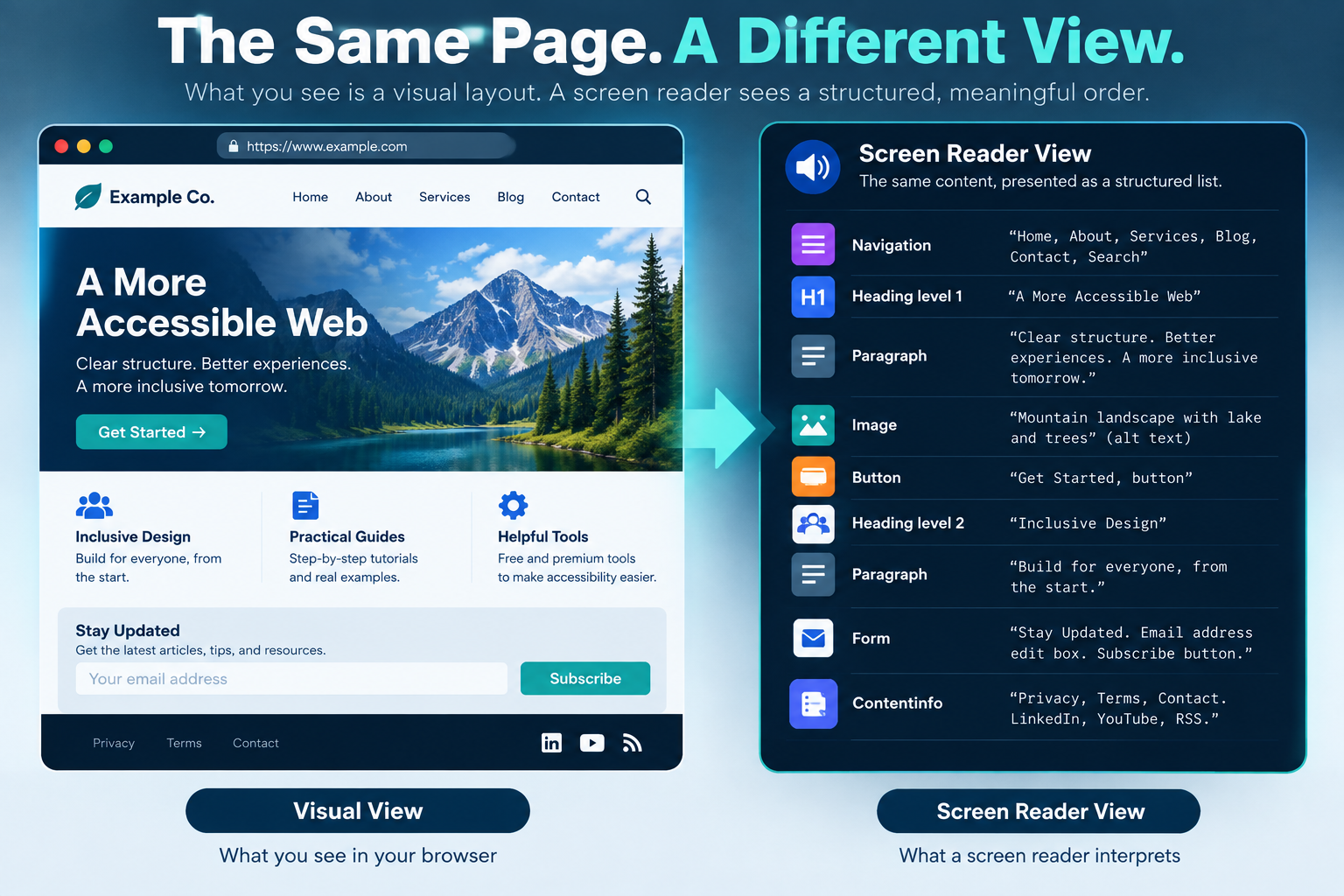
Screen readers are among the most important assistive technologies used to access websites, applications, documents, and operating systems. They convert information exposed by an interface into speech, braille, or both, allowing people who are blind or have low vision to navigate and interact with digital content.
But there isn't one universal screen reader. Windows, macOS, Linux, iOS, and Android all have different options, and the browser used alongside a screen reader can significantly affect the experience.
For developers and accessibility testers, understanding these combinations is important. A page that appears to work with one screen reader and browser is not guaranteed to behave identically with another.
Screen Readers for Windows
Windows has the largest selection of widely used screen readers. According to WebAIM's Screen Reader User Survey #10, 86.1% of respondents reported Windows as the operating system they primarily use with a desktop or laptop screen reader.
JAWS
JAWS (Job Access With Speech) is a commercial screen reader developed by Freedom Scientific. It has a long history in professional, educational, and enterprise environments and remains one of the most widely used screen readers.
In WebAIM's survey, 40.5% of respondents identified JAWS as their primary desktop screen reader.
NVDA
NVDA (NonVisual Desktop Access) is a free and open-source Windows screen reader developed by NV Access.
It has become especially valuable to web developers because anyone can download it without purchasing a commercial accessibility suite.
NVDA was the most commonly used desktop screen reader in WebAIM's survey, with 65.6% of respondents reporting that they commonly use it. When users were asked which screen reader was their primary screen reader, NVDA accounted for 37.7%.
Windows Narrator
Narrator is Microsoft's built-in Windows screen reader. Unlike JAWS and NVDA, it does not require additional software to be installed.
To toggle Narrator, press:
Windows + Ctrl + Enter
Narrator can also be configured through:
Settings > Accessibility > Narrator
Narrator presents an interesting usage pattern. Although only 0.7% of respondents identified Narrator as their primary screen reader, 37.3% reported commonly using it.
Screen Readers for macOS
VoiceOver
Apple includes VoiceOver directly with macOS. No additional screen reader needs to be installed.
VoiceOver provides spoken output, keyboard navigation, structural navigation, and support for refreshable braille displays.
On most Macs, VoiceOver can be toggled using:
Command + F5
VoiceOver can also be configured under:
System Settings > Accessibility > VoiceOver
For web accessibility testing on macOS, VoiceOver paired with Safari is a particularly important combination because both the browser and assistive technology are part of Apple's platform.
Screen Readers for Linux
Orca
Orca is the primary open-source screen reader used with Linux desktop environments. It provides speech and refreshable braille access to applications that expose accessibility information through Linux accessibility infrastructure.
Orca can navigate web content structurally, including headings, forms, tables, and other interface components.
Installation and activation can vary depending on the Linux distribution and desktop environment.
On GNOME systems, the screen reader can commonly be enabled through:
Settings > Accessibility > Seeing > Screen Reader
The GNOME keyboard shortcut for toggling the screen reader is:
On many GNOME systems, Super + Alt + S toggles the screen reader.
Orca is commonly tested with Firefox, although it also works with other applications and browser engines that expose supported accessibility information.
Screen Readers on iPhone and iPad
VoiceOver
VoiceOver is also built directly into iOS and iPadOS.
To enable it, open:
Settings > Accessibility > VoiceOver
Developers who test accessibility frequently can assign VoiceOver to the Accessibility Shortcut. Once configured, a triple-click of the Side button or Home button can quickly toggle VoiceOver.
VoiceOver changes the way touch interaction works. Instead of simply tapping an item to activate it, users can explore the interface by touch or swipe between accessible elements while VoiceOver announces information about them.
Screen Readers on Android
TalkBack
TalkBack is Google's screen reader for Android and is included with the Android Accessibility Suite on many Android devices.
It can generally be enabled through:
Settings > Accessibility > TalkBack
Android manufacturers sometimes organize accessibility settings differently, so the exact menu location may vary by device.
On devices configured to use the accessibility shortcut, holding both volume buttons can also toggle TalkBack.
Other Screen Readers
Although JAWS, NVDA, VoiceOver, Narrator, TalkBack, and Orca account for much of the screen-reader ecosystem developers encounter, they are not the only options.
-
Dolphin SuperNova — a commercial Windows accessibility suite.
-
ZoomText/Fusion — combines screen magnification and screen-reading technology.
-
ChromeVox — Google's built-in ChromeOS screen reader.
-
VoiceView — screen-reading technology available on supported Amazon devices.
-
Commentary/Jieshuo — an alternative screen reader used on Android.
Which Screen Readers Are Used Most?
One of the largest regularly cited sources of screen-reader usage information is WebAIM's Screen Reader User Survey.
Screen Reader User Survey #10 was conducted in December 2023 and January 2024 and included 1,539 respondents.
The results should not be interpreted as worldwide market share. Survey respondents are self-selected, and screen-reader usage varies by geography, experience, disability, workplace, and other factors. The results are still extremely useful for understanding common assistive-technology environments.
| Screen Reader | Respondents Who Commonly Use It |
|---|---|
| NVDA | 65.6% |
| JAWS | 60.5% |
| VoiceOver | 43.9% |
| Narrator | 37.3% |
| Orca | 8.3% |
| ZoomText/Fusion | 7.5% |
| Dolphin SuperNova | 5.4% |
| ChromeVox | 3.8% |
These percentages add up to more than 100% because screen-reader users often use multiple products. In fact, 71.6% of respondents reported using more than one desktop or laptop screen reader.
The Browser Matters Too
Testing a screen reader without considering the browser only tells part of the story.
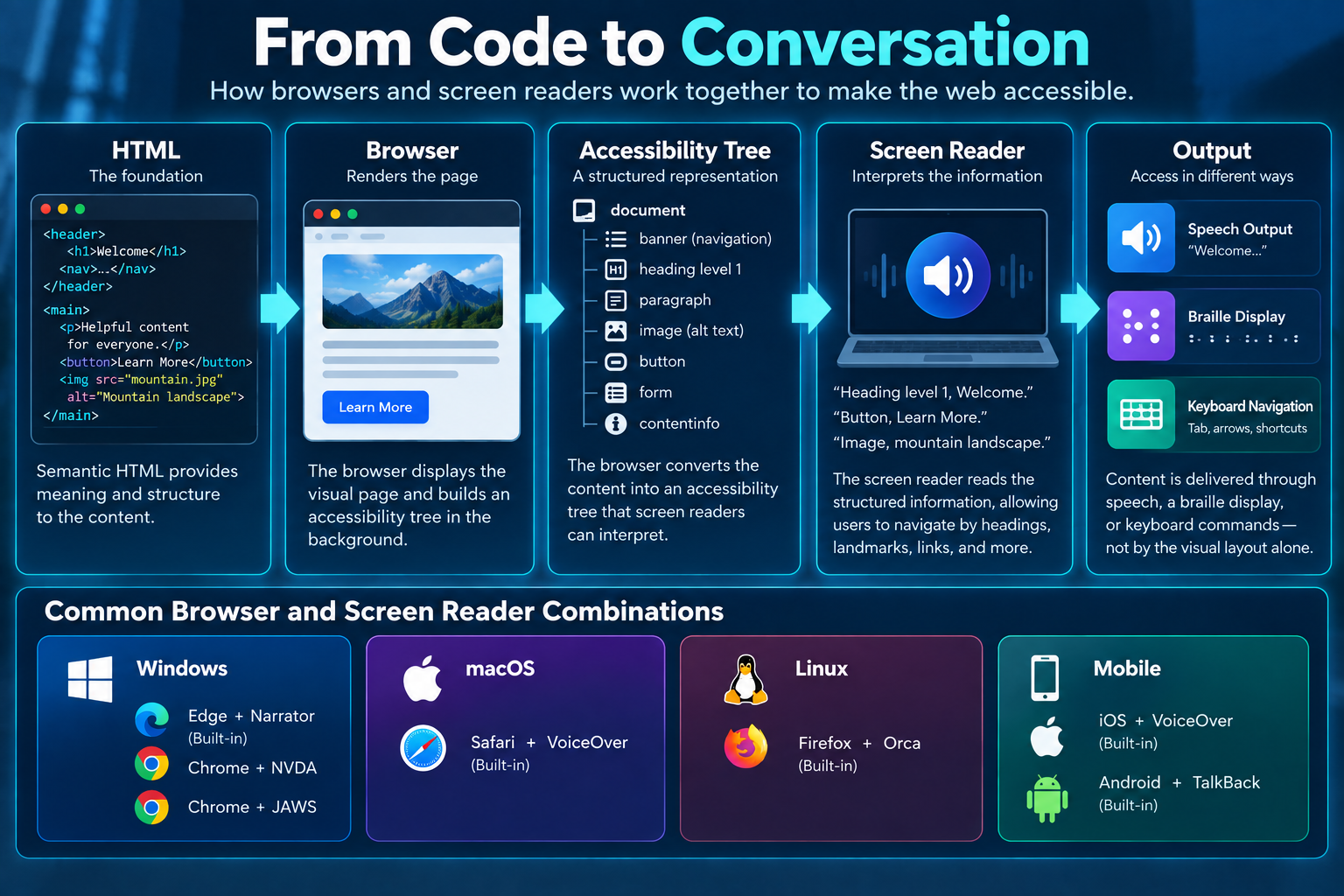
Browsers create accessibility representations of web content that assistive technologies consume. Differences between browser engines and accessibility APIs can therefore affect how the same page behaves.
WebAIM reported the following primary screen reader and browser combinations:
| Screen Reader and Browser | Survey Share |
|---|---|
| JAWS + Chrome | 24.7% |
| NVDA + Chrome | 21.3% |
| JAWS + Edge | 11.4% |
| NVDA + Firefox | 10.0% |
| VoiceOver + Safari | 7.0% |
| NVDA + Edge | 5.0% |
| JAWS + Firefox | 2.6% |
| VoiceOver + Chrome | 2.0% |
| Orca + Firefox | 1.9% |
A Practical Screen Reader Testing Matrix
It is rarely practical for a small development team to test every possible combination of operating system, browser, and screen reader.
A useful cross-platform testing set can include:
-
Windows: NVDA + Chrome
-
Windows: NVDA + Firefox
-
Windows: JAWS + Chrome when JAWS is available
-
Windows: Narrator + Edge
-
macOS: VoiceOver + Safari
-
iPhone/iPad: VoiceOver + Safari
-
Android: TalkBack + Chrome
-
Linux: Orca + Firefox when Linux coverage is required
This does not mean other combinations can be ignored. Instead, it provides developers with several substantially different accessibility environments for identifying interoperability problems.
Screen Readers Navigate Structure, Not Just Text
A common misconception is that a screen reader simply reads everything on the screen from top to bottom.
Experienced users frequently navigate using the semantic structure of a document.
Screen readers can expose and navigate elements such as:
-
headings,
-
links,
-
buttons,
-
forms and form controls,
-
tables,
-
lists,
-
landmarks and regions,
-
images and alternative text,
-
dialogs,
-
and dynamic status messages.
WebAIM found that 71.6% of respondents primarily navigate an unfamiliar, lengthy web page using headings.
This is one reason semantic HTML is so important. Elements such as
<h1>,
<nav>,
<main>,
<button>, and properly associated form labels communicate information that visual styling alone cannot provide.
Where Does an Element Reader Fit In?
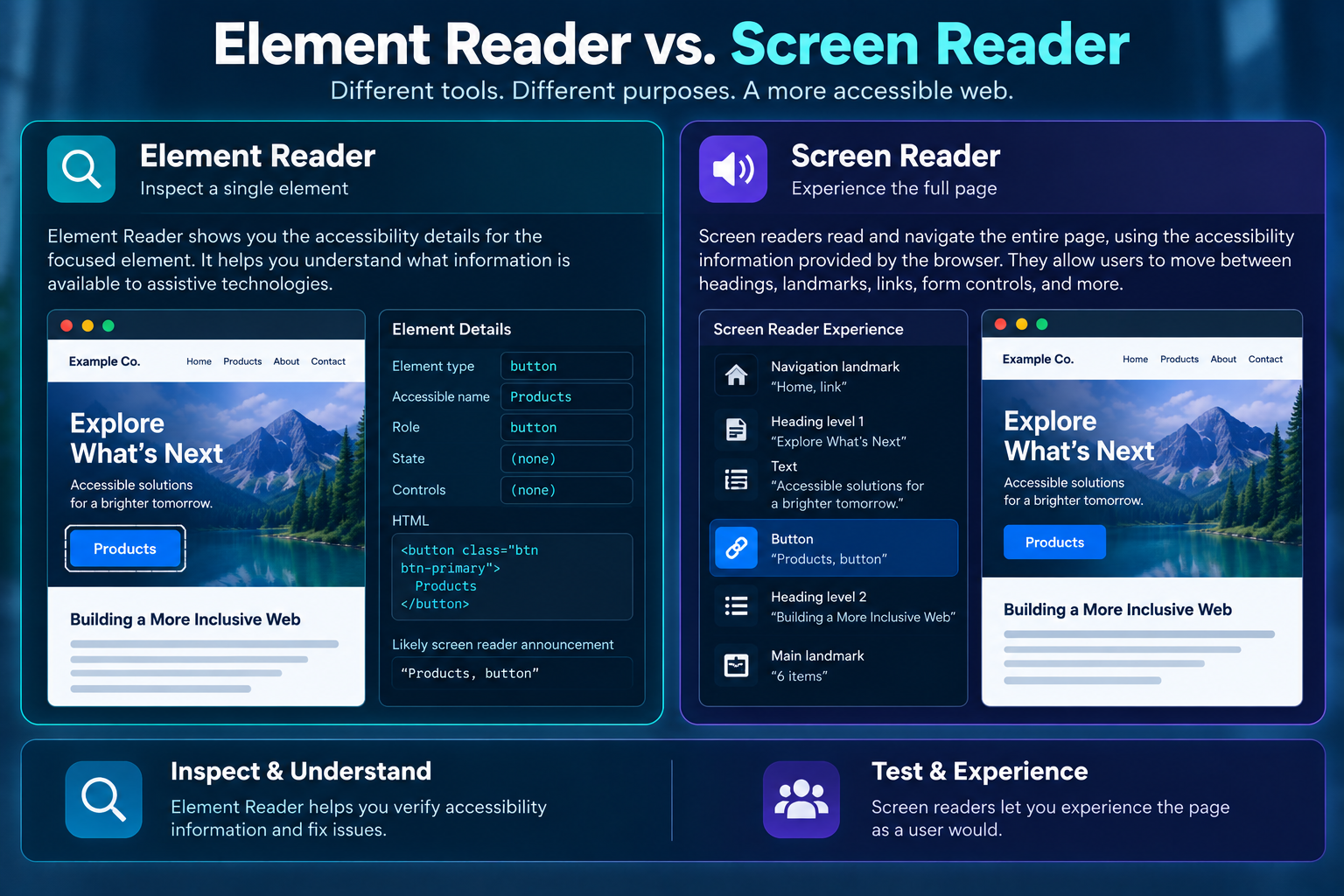
Accessibility inspection tools can complement screen readers by helping developers understand the accessibility information exposed by individual elements.
For example, an Element Reader can help developers examine an element and understand information such as its semantic purpose, accessible name, state, description, or other accessibility-related properties.
That makes an Element Reader particularly useful as an educational and diagnostic tool.
It is important, however, to distinguish an Element Reader from a complete screen reader.
Element Reader vs. Screen Reader
| Capability | Element Reader | Full Screen Reader |
|---|---|---|
| Inspect individual web elements | Yes | Yes, indirectly through interaction |
| Explain element semantics | Primary purpose | Communicates semantics to the user |
| Help developers learn accessibility | Yes | Possible, but not its primary purpose |
| Navigate headings, links, forms, and landmarks | Limited to the tool's inspection features | Yes |
| Operate an entire website without sight | No | Yes |
| Operate desktop or mobile applications | No | Yes |
| Interact with dialogs and dynamic interfaces | Can inspect them | Yes |
| Respond to live regions | Can potentially identify them | Yes |
| Provide continuous speech navigation | No | Yes |
| Refreshable braille support | No | Supported by major screen readers |
An Element Reader Does Not Replace Screen Reader Testing
An Element Reader can reveal that a button has an accessible name, that an image contains alternative text, or that a region has a particular semantic role.
That information is valuable, but accessibility is also about behavior.
A developer still needs to determine questions such as:
-
Can the control be reached using the keyboard?
-
Does focus move to the correct place?
-
Does the screen reader announce the control at the appropriate time?
-
Are state changes communicated?
-
Does a dialog correctly contain focus?
-
Can the interface be efficiently navigated by headings or landmarks?
-
Does dynamic content produce an understandable announcement?
These behaviors are best evaluated using actual assistive technology.
The two types of tools therefore complement one another:
Use an Element Reader to understand what accessibility information an element exposes. Use a screen reader to experience how that information works as part of a complete interaction.
Screen Reader Testing Is Only Part of Accessibility Testing
Even successful testing with several screen readers does not prove that a website is fully accessible.
Accessibility testing should also include keyboard-only operation, visible focus, zoom and reflow, color and contrast, reduced motion where appropriate, form validation, touch interaction, automated testing, semantic inspection, and evaluation against applicable WCAG success criteria.
Automated accessibility tools, element inspection tools, keyboard testing, and screen readers each reveal different categories of problems.
The strongest accessibility testing process combines them rather than depending on any one tool.
Related Calamnet tools:
- Element Reader
The Element Reader is designed to improve accessibility and usability, it allows visitors to listen to content instead of reading it, making articles, documentation, and long-form pages easier to consume. The player works directly in the browser using built-in speech synthesis, so it requires no external services or third-party libraries.
References
-
WebAIM — Screen Reader User Survey #10, conducted December 2023 and January 2024.
-
Microsoft Accessibility — Narrator documentation.
-
Apple Accessibility — VoiceOver documentation.
-
Android Accessibility — TalkBack documentation.
-
GNOME — Orca Screen Reader documentation.
-
NV Access — NVDA documentation.