


Published: | Category: Checklist
A Practical Review Checklist
Automatic captions can give you a useful first draft. They can also miss the one word that changes an instruction, a speaker’s name, or the sound that explains what happens next.
The goal of review is to give someone following the captions the information they need to understand the recording. This guide walks through a short fictional example, then turns that review into a repeatable publishing checklist.
Already have a file? Start in the Caption / Transcript Editor. Starting with a recording? Explore Media Transcriber or the complete transcription workflow.
1. Start with meaning, not the file format
Captions connect text to playback. They carry speech, identify speakers when needed, and include meaningful sounds. A transcript presents the content as a readable document. A video may need both, and important visual information may need a further alternative.
For prerecorded video with audio, WCAG 2.2 Success Criterion 1.2.2 addresses synchronized captions at Level A, with an exception for clearly labeled media that is itself an alternative to text. A transcript beside an ordinary video does not replace those captions. W3C: Understanding Captions (Prerecorded)
Before editing, keep the original recording and caption export. Work on a copy, and note any names or terminology you will need to verify.
2. Review the words that can change the message
Imagine a short training video in which Alex demonstrates how to submit a request. Sam asks a question off camera, and a confirmation sound follows a successful submission.
Here is a fictional automatic-caption draft:
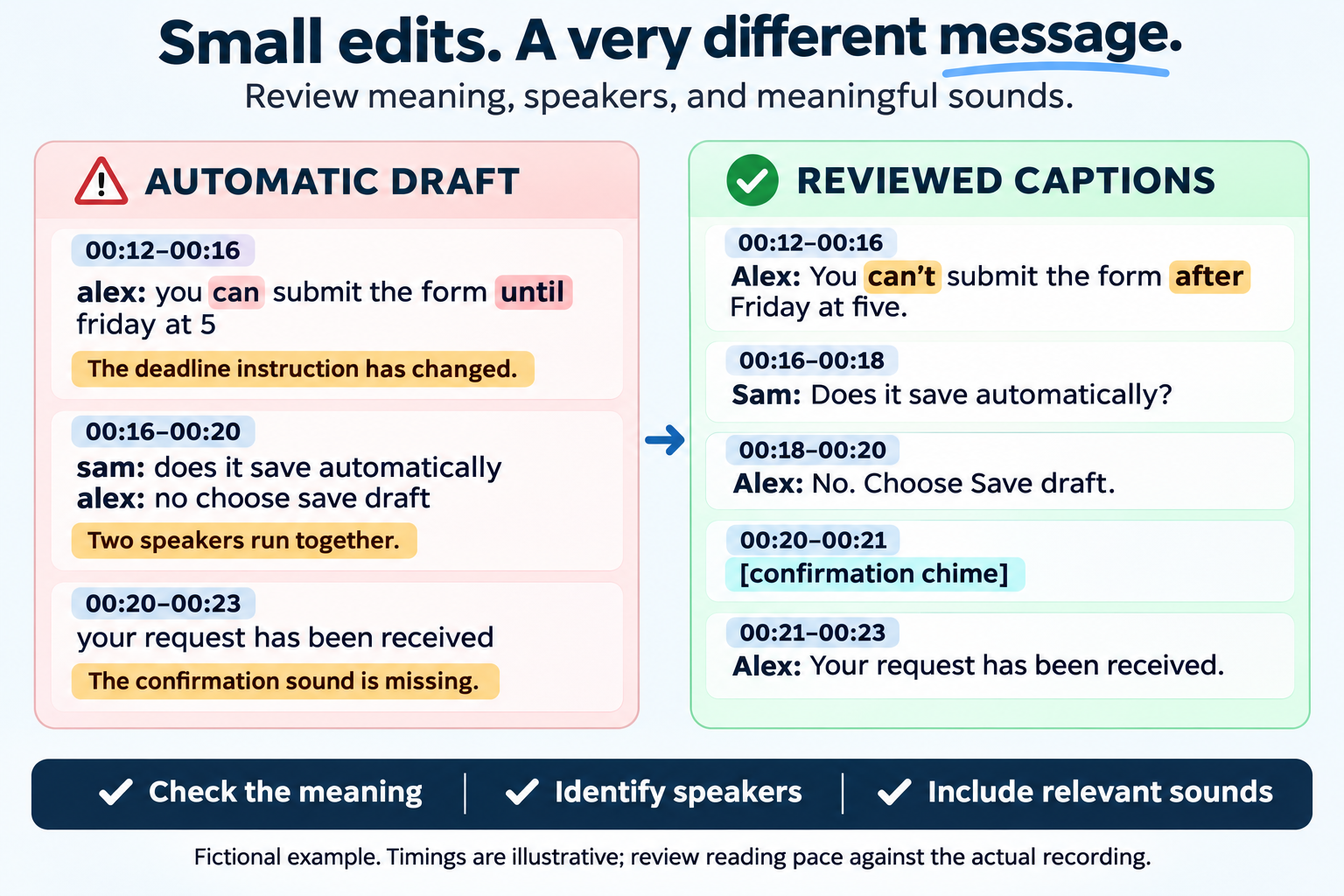
00:12–00:16 alex: you can submit the form until friday at 5
00:16–00:20 sam: does it save automatically alex: no choose save draft
00:20–00:23 your request has been received
Listening to the recording reveals that Alex said “You can’t submit the form after Friday at five.” The draft has changed the wording of a deadline instruction. It has also run two speakers together and omitted the confirmation sound.
A reviewed version might read:
00:12–00:16 Alex: You can’t submit the form after Friday at five.
00:16–00:18 Sam: Does it save automatically?
00:18–00:20 Alex: No. Choose Save draft.
00:20–00:21 [confirmation chime]
00:21–00:23 Alex: Your request has been received.
These times are illustrative. A real recording needs its own timing and reading-pace review; fixing the words does not prove that a cue is comfortably readable.
During your first pass, pay particular attention to:
- Negatives such as “not,” “can’t,” and “never.”
- Names, acronyms, product names, and unfamiliar technical terms.
- Dates, times, quantities, prices, and measurements.
- Commands, button labels, and step-by-step instructions.
- Words spoken during noise, laughter, or overlapping conversation.
Use find and replace for recurring corrections, then review each affected passage. A name that resembles an ordinary word can make a global replacement risky. When you cannot resolve a passage, flag it for review rather than confidently guessing. W3C: Transcribing Audio to Text
3. Make speaker changes and sounds understandable
In the example, Sam is off camera. A speaker label helps explain why the voice and point of view change. Use a consistent name or descriptive label, and avoid assigning an identity you have not verified.
For sounds, ask: Would missing this sound change someone’s understanding? A confirmation chime matters when it signals that an action succeeded. An alarm, a knock that interrupts a conversation, or laughter that changes the tone may matter too.
Describe what can be heard rather than an interpretation you cannot support. For example, [door slams] identifies a sound; [Alex is angry] assumes an emotion. Not every incidental noise needs a cue. W3C’s caption guidance includes the non-speech audio needed to understand the content, and cautions that automatic output needs accuracy checking. W3C: Captions/Subtitles
4. Check timing, line breaks, and reading pace
Watch the complete video with captions enabled. Then make a second pass with the sound muted. The first pass helps you compare the text with the audio; the second helps you notice confusing transitions and missing information.
Check that captions:
- Appear in step with the speech or sound they represent.
- Remain visible long enough to read at the pace of the recording.
- Break at sensible phrases, rather than separating words that belong together.
- Make speaker changes easy to follow.
- Do not cover important labels, demonstrations, or on-screen instructions.
For example, this break is easier to follow:
Choose Save draft before closing the window.
This one interrupts the name of the control:
Choose Save draft before closing the window.
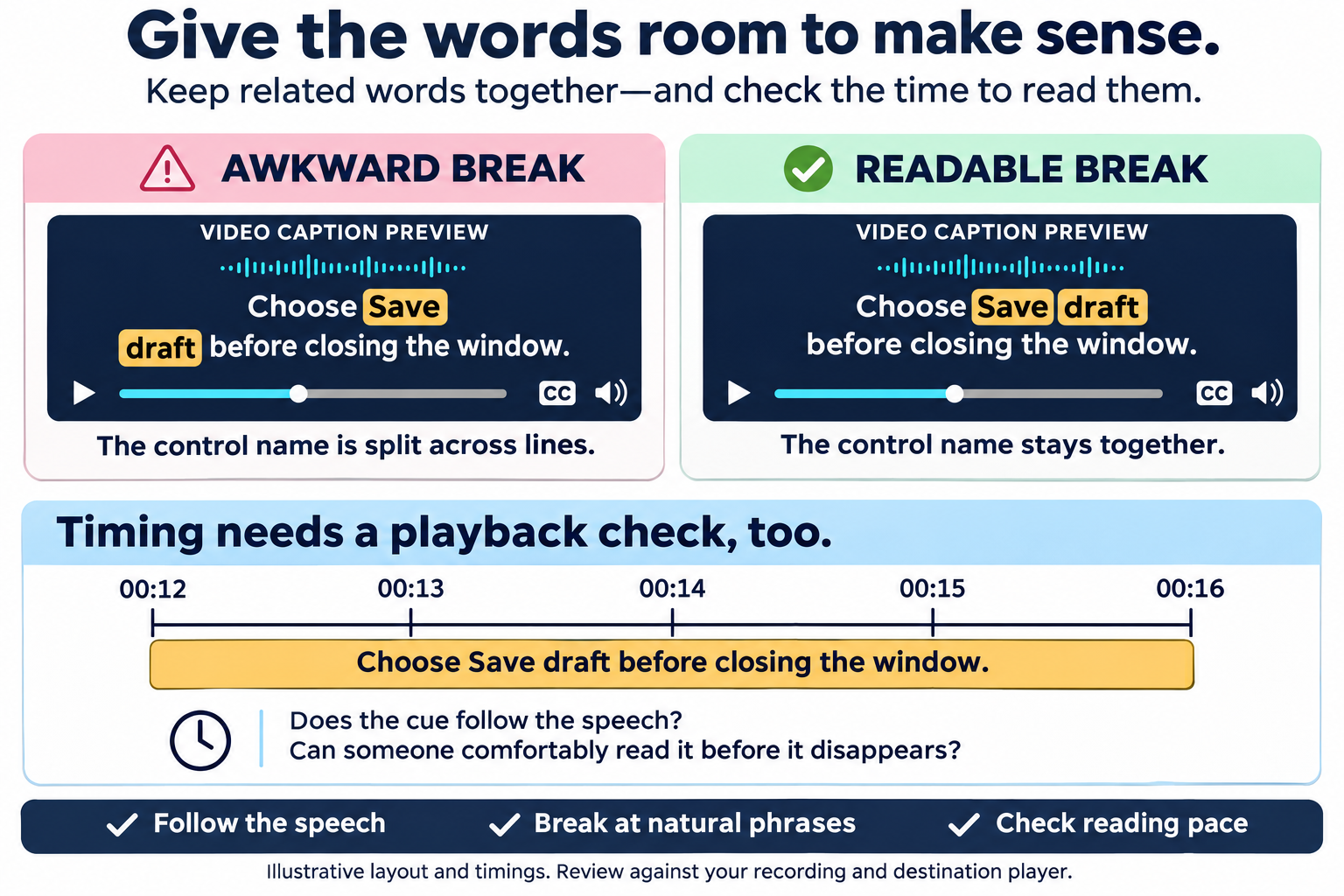
Check the destination platform’s caption specifications when deciding cue length, line count, and styling. A platform’s limits are not a universal WCAG recipe, and fitting those limits does not by itself make captions accurate or usable.
5. Turn reviewed captions into a useful transcript
Once the captions are reviewed, reuse their text to create a readable transcript. Remove cue numbers and timestamps when they interrupt reading, combine fragments into paragraphs, and retain speaker labels and meaningful sounds. Useful timestamps can stay where they help readers find a section.
For our sample, a transcript excerpt could look like this:
Submitting the request
Alex: You can’t submit the form after Friday at five.
Sam: Does it save automatically?
Alex: No. Choose Save draft.
[confirmation chime]
Alex: Your request has been received.
This is a transcript excerpt, not the complete alternative for the demonstration. If the video communicates essential information visually, include that information in an appropriate descriptive transcript as well.
Publish the transcript as readable text, with useful headings and a descriptive link beside the player—for example, “Read the request submission transcript.” W3C explains how transcripts can be derived from captions and made easier to use. W3C: Transcripts
For prerecorded audio-only content, WCAG 1.2.1 generally calls for an equivalent alternative, commonly a transcript; clearly labeled audio that is itself an alternative to text has an exception. W3C: Understanding Audio-only and Video-only (Prerecorded)
6. Check what the video shows without saying
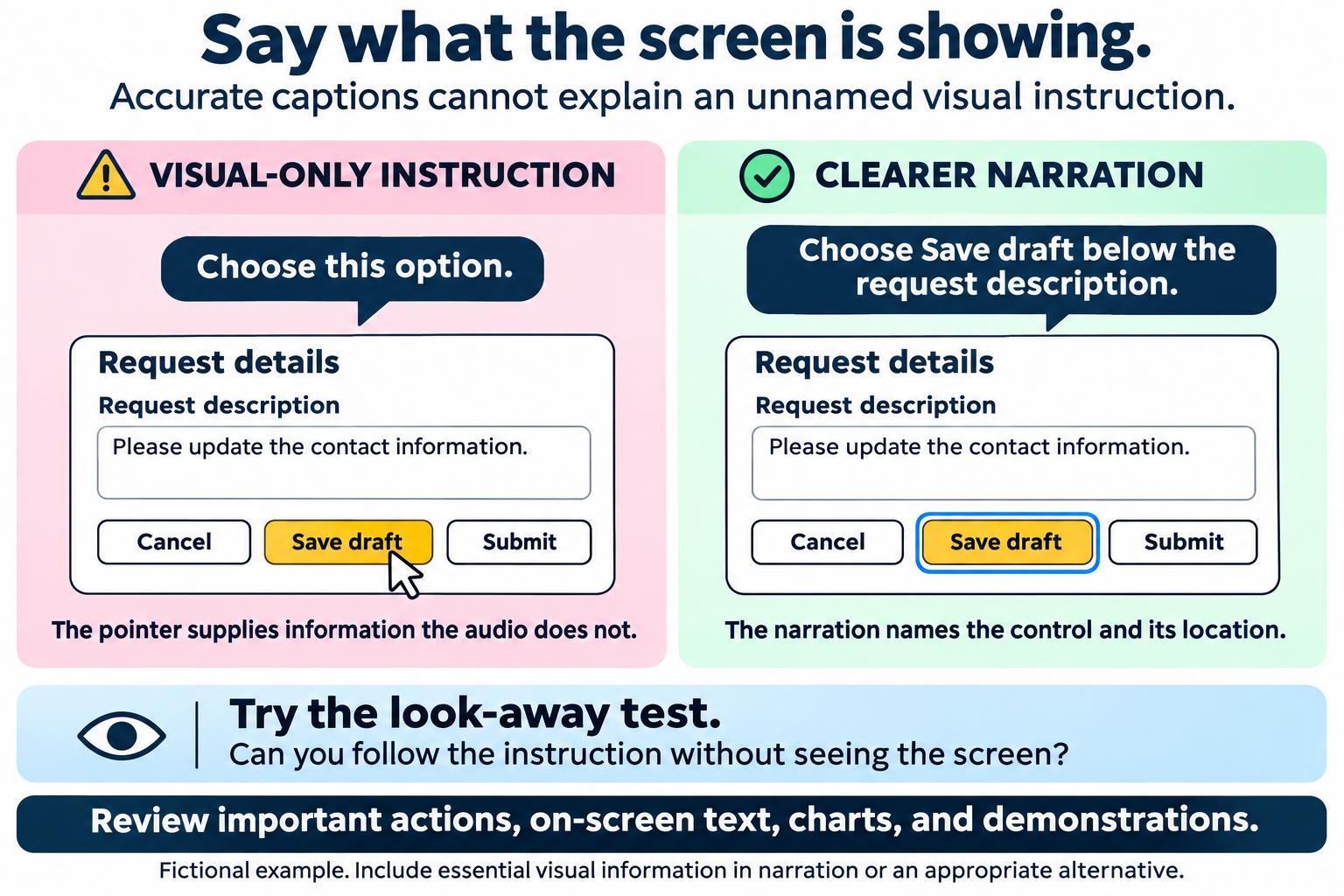
Suppose Alex says, “Choose this option,” while pointing to one of three controls. Accurate captions repeat those words, but they do not explain which option Alex indicated.
Review the recording while looking away from the screen. Can you still understand the instruction? Note important actions, charts, text, and demonstrations that the audio does not explain.
If you are recording or revising the video, include that information naturally in the narration: “Choose Save draft below the request description.” For existing recordings, consider audio description and a descriptive transcript. W3C: Description of Visual Information
For prerecorded video with audio, WCAG 1.2.5 at Level AA requires audio description of important visual information not already conveyed by the audio. A descriptive transcript alone does not replace that Level AA requirement. Additional audio description is unnecessary when the existing audio already conveys all the important visual information. W3C: Understanding Audio Description (Prerecorded)
7. Export for the destination, then test the destination
Check which caption formats your player or publishing platform accepts. SRT and WebVTT are common choices, but support and formatting behavior vary. Converting a file does not check its accuracy, add missing descriptions, or guarantee that styling will survive an upload.
Use Caption Converter when you need a different supported caption format or a timestamp-free transcript. Reopen the exported file before publishing, and check the finished upload in the actual player.
For a web page, Responsive Audio Embed can help prepare a player with a transcript link. Responsive Video Embed helps prepare responsive video embed markup; configure and verify captions in the destination player too.
Test the result on a narrow screen and with keyboard navigation. Confirm that caption controls are discoverable, the correct language track is available, captions remain readable, and the transcript link opens the intended content.
Before you publish: the review checklist
- Meaning: Names, numbers, negatives, and instructions match the recording.
- Speakers: Changes are understandable, with labels where needed.
- Sounds: Relevant non-speech audio is represented.
- Timing: Cues follow playback and allow enough reading time.
- Presentation: Line breaks make sense, and captions do not obscure important content.
- Transcript: Readable text is available through a descriptive link beside the media.
- Visual information: Important information shown only on screen has been addressed.
- Export: The final file is supported and works after upload.
- Player: Keyboard controls, captions, and transcript access work on the published page.
Keep the reviewed caption file and transcript together with the source recording. If the media changes, review the text and timing again. The finished experience, not just a successful export, is what your audience will use.