


Published: | Category: In-depth
Beyond the Visual Layout: A Deep Dive into Accessible Landmarks
WCAG Deep Dive
A web page can look perfectly organized and still have very little meaningful structure for someone navigating it with assistive technology.
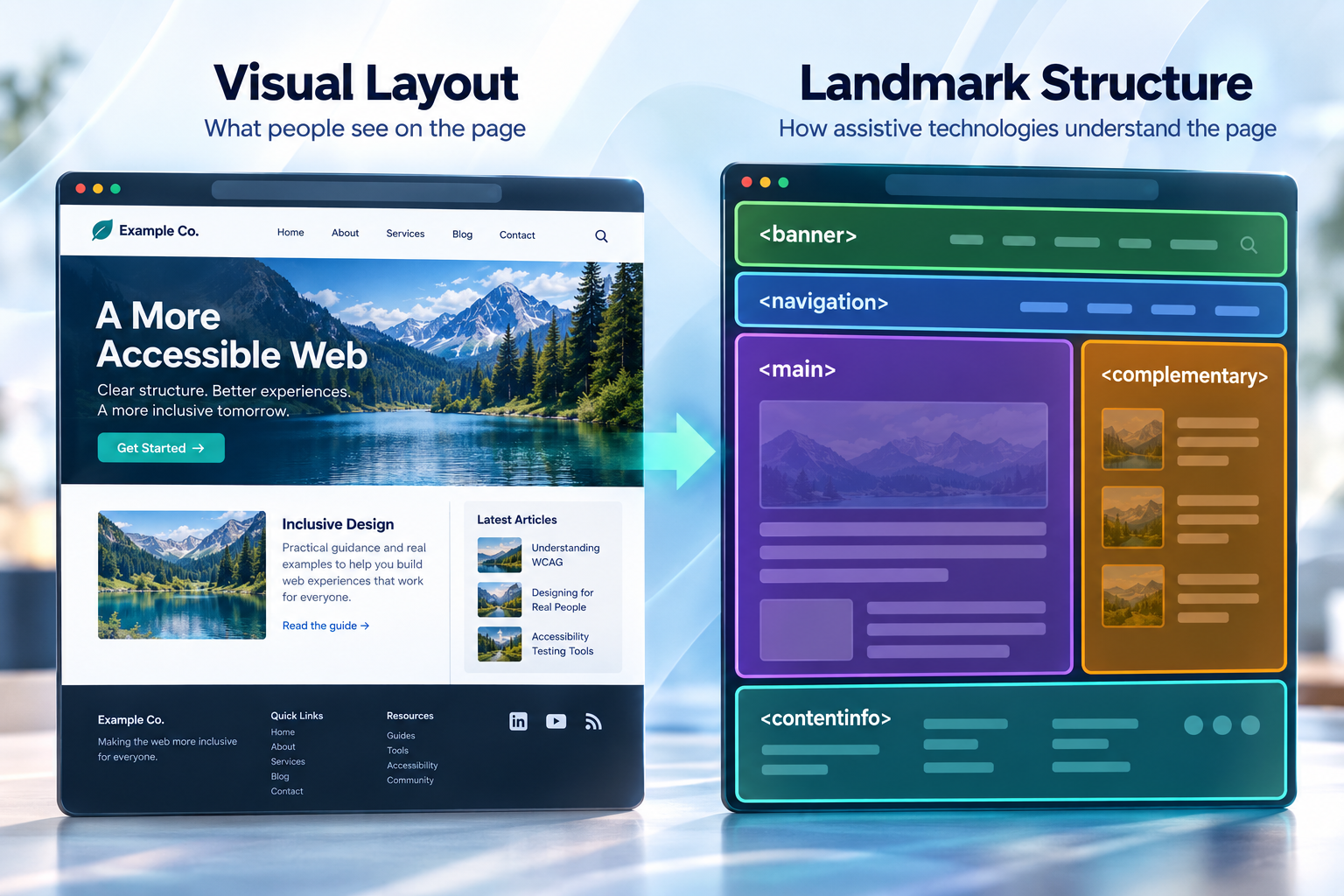
A sighted visitor can often recognize a website's header, navigation, search area, main article, sidebar, and footer almost instantly. Differences in position, spacing, background color, borders, typography, and size make those regions visually apparent.
But visual organization is not automatically programmatic organization.
For users who navigate with screen readers and other assistive technologies, landmarks provide a way to expose the major regions of a page in code. Instead of encountering a long stream of elements with little indication of where one major area ends and another begins, users can identify and, in many cases, navigate directly between the major regions of the interface.
Although landmark roles are defined by ARIA, modern HTML exposes many landmark semantics natively through elements such as
<header>, <nav>, <main>, <aside>, and <footer>
. They are part of the
underlying architecture of an accessible page.
In this deep dive, we'll look at how landmarks work, their relationship to semantic HTML, how they support WCAG, where developers commonly misuse them, and how landmarks, headings, and skip links work together to create a page that is easier to understand and navigate.
Visual Structure and Programmatic Structure
Consider a typical website.
Visually, its layout might contain:
- A site header containing branding and search
- Primary navigation
- A main content area
- Related or supplementary content
- A site footer
A sighted user does not need an instruction manual to understand much of this layout. Position and visual styling communicate the page's organization.
Now imagine that the underlying HTML is essentially this:
<div class="header">...</div>
<div class="navigation">...</div>
<div class="content">...</div>
<div class="sidebar">...</div>
<div class="footer">...</div>
CSS can make those elements look exactly like a header, navigation area, main content area, sidebar, and footer.
But a generic <div> does not communicate those meanings
merely because CSS makes it look a certain way.
Semantic HTML can express the same organization programmatically:
<header>
  ...
</header>

<nav aria-label="Primary">
  ...
</nav>

<main>
  <article>
    ...
  </article>

  <aside>
    ...
  </aside>
</main>

<footer>
  ...
</footer>
Now the structure is not only visible. Much of it is also represented in the accessibility tree.
That distinction between what a page looks like and what its markup says it is is at the heart of accessible landmarks.
What Is a Landmark?
A landmark identifies a major region of a web page.
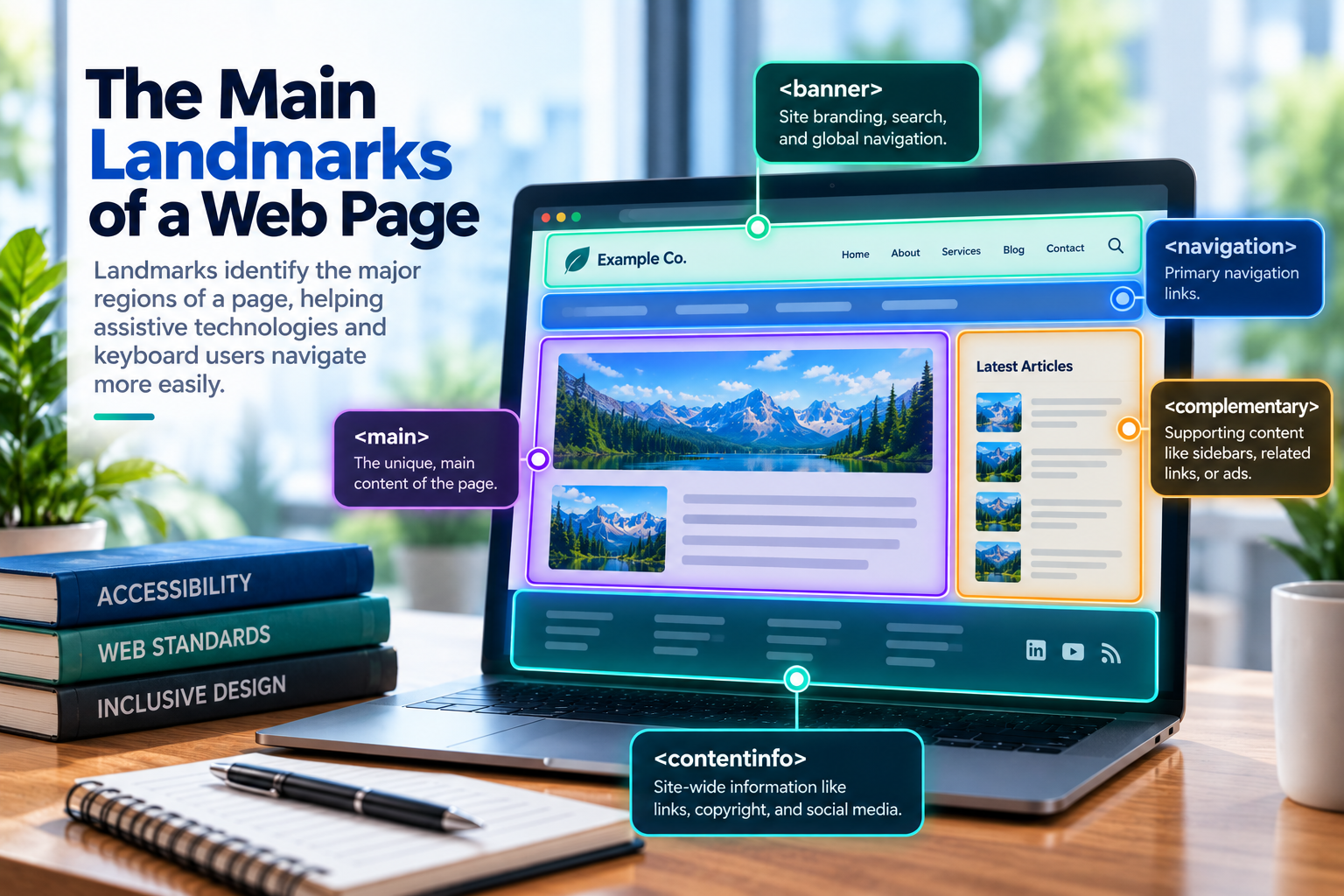
The WAI-ARIA Authoring Practices Guide describes eight landmark roles:
bannernavigationmaincomplementarycontentinfosearchformregion
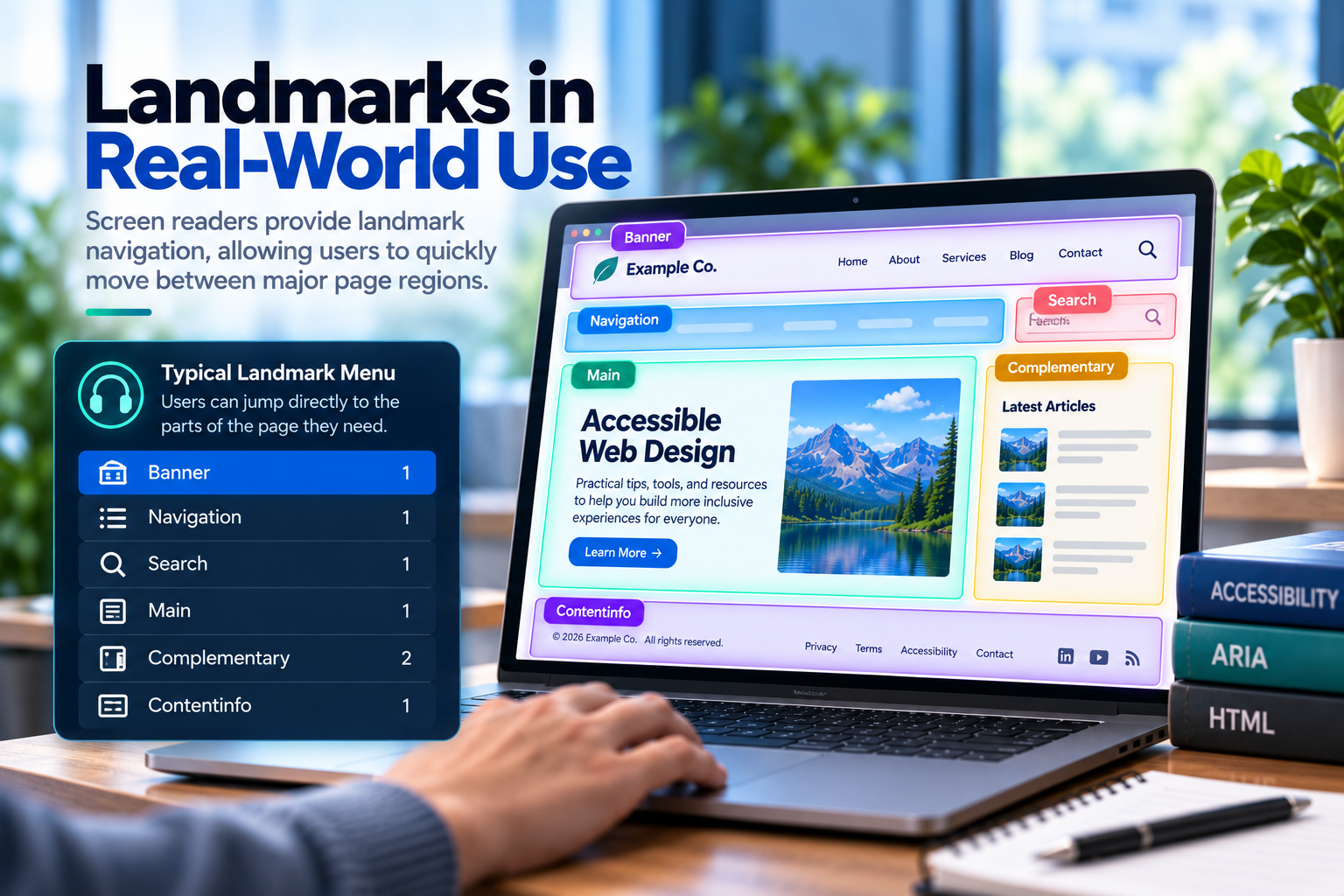
Landmarks allow assistive technologies to expose the high-level organization of a page. A screen reader, for example, may provide commands or a list of landmarks that lets a user move among regions without navigating through every element between them.
A landmark map for a page might conceptually resemble:
Banner
Primary navigation
Search
Main
Related content
Content information
This gives the user another way to understand and navigate the interface.
Landmarks are not intended to describe every container on a page. They represent its major structural regions.
Think of them as the map of the building, not a label attached to every piece of furniture.
The WCAG Connection
Landmarks do not exist in isolation from WCAG.
W3C's ARIA11 technique, Using ARIA landmarks to identify regions of a page, is listed as a sufficient technique related to three WCAG success criteria:
- 1.3.1 Info and Relationships — Level A
- 1.3.6 Identify Purpose — Level AAA
- 2.4.1 Bypass Blocks — Level A
It is important to understand what that means. WCAG techniques are documented ways of satisfying success criteria in particular circumstances. Using landmarks is not itself a universal requirement that every page must implement in exactly the same way.
For landmarks, one of the clearest practical relationships is with WCAG 2.4.1 Bypass Blocks.
WCAG 2.4.1: Bypass Blocks
WCAG 2.4.1 requires a mechanism to bypass blocks of content that are repeated across multiple web pages.
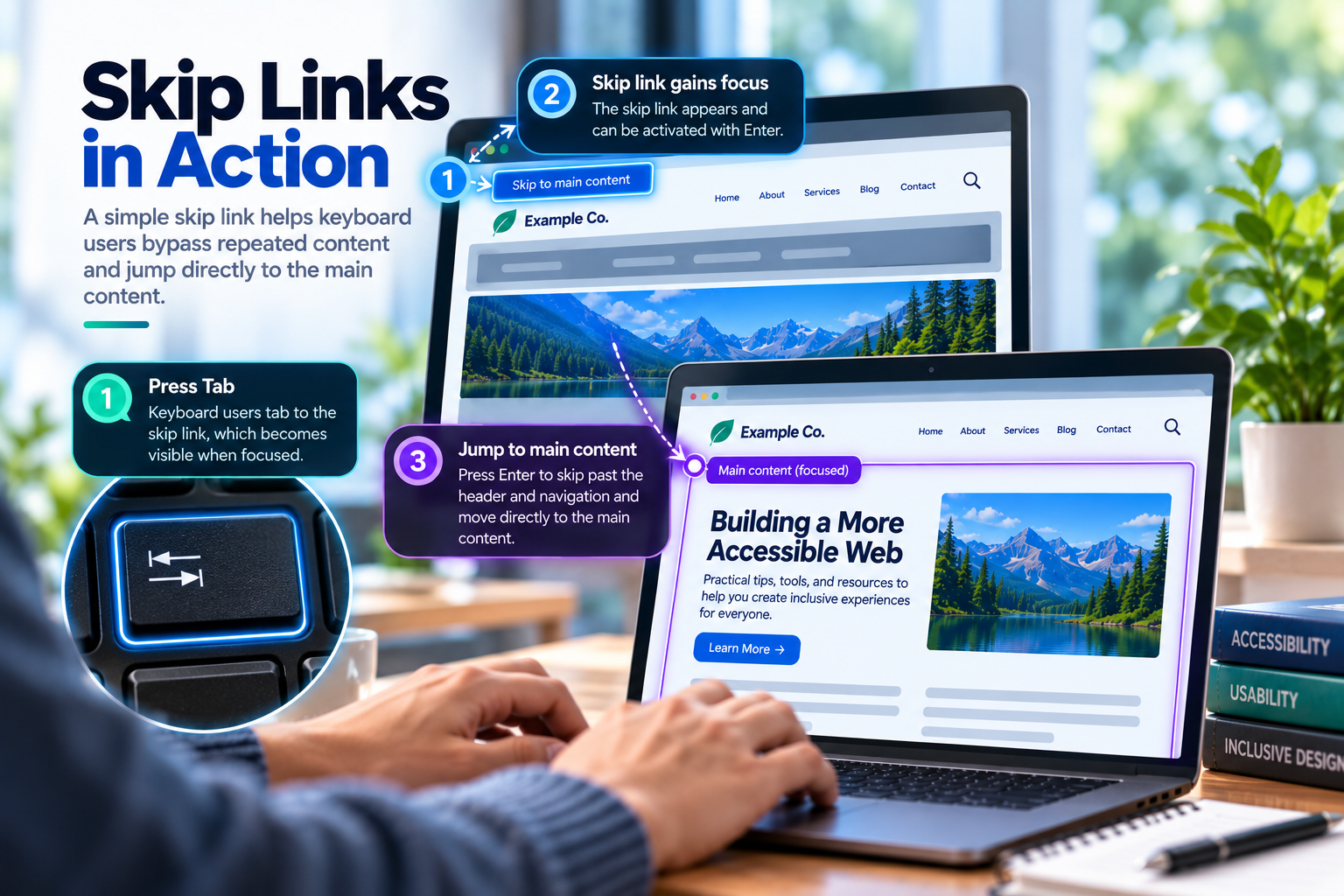
Repeated navigation is an obvious example. A keyboard user should not have to move through an entire site header and navigation menu every time they open a new page before they can reach the primary content.
One familiar solution is a skip link:
<a href="#main-content" class="skip-link">
  Skip to main content
</a>

...

<main id="main-content">
  ...
</main>
Skip links are extremely useful, particularly for keyboard users.
But they are not the only mechanism available for navigating around repeated content. W3C also identifies grouping blocks of content in a way that allows them to be skipped, including the use of ARIA landmarks, as a sufficient technique for WCAG 2.4.1.
Landmarks Do Not Make Skip Links Obsolete
It can be tempting to interpret landmark support as a reason to remove a "Skip to main content" link.
That is generally the wrong conclusion.
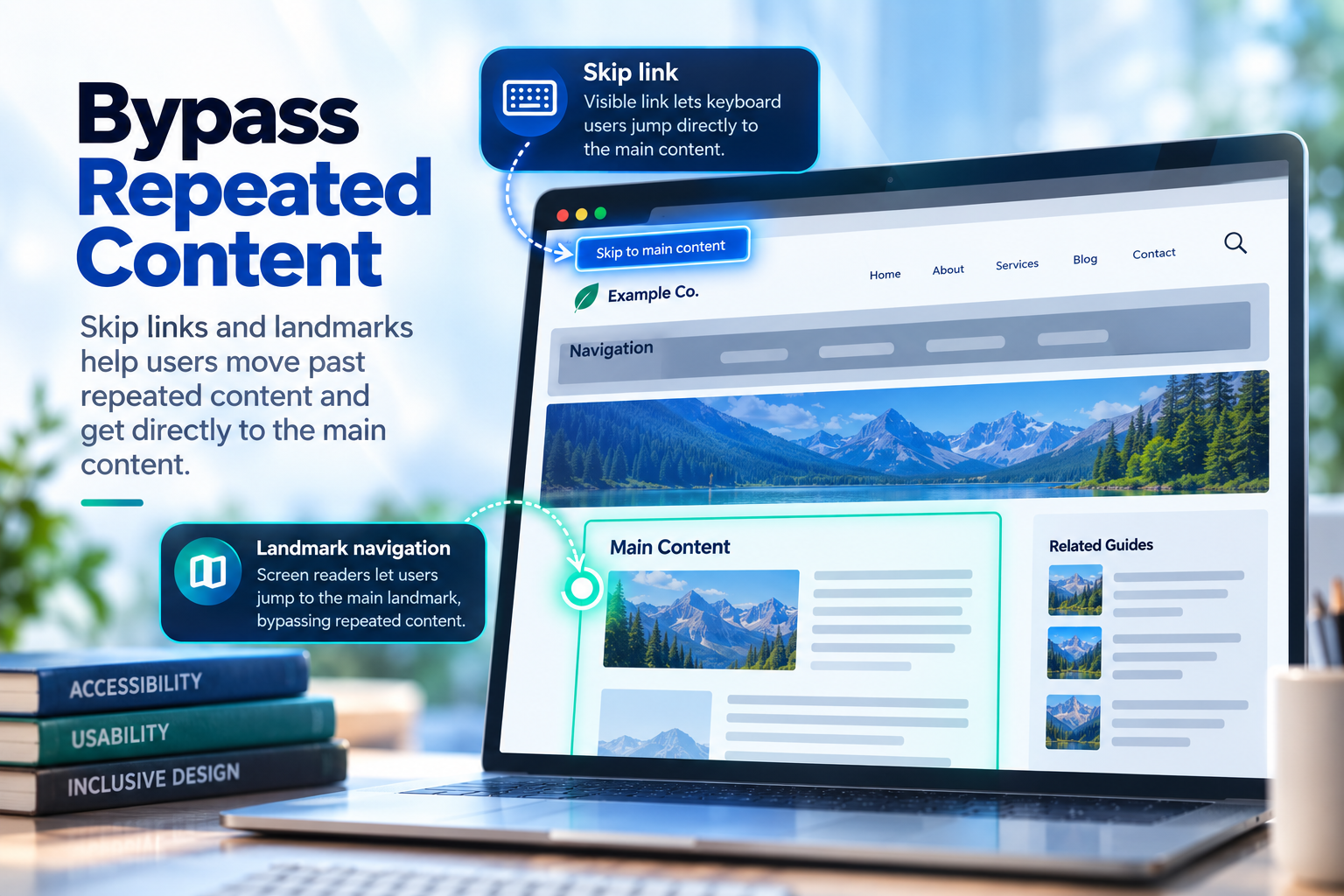
Skip links and landmarks serve overlapping but different navigation needs.
- Skip links provide keyboard users with an immediate shortcut past repeated content.
- Landmarks expose the major page regions to assistive technologies that support landmark navigation.
A well-structured page can provide both.
Native HTML Often Gives You Landmarks for Free
Developers sometimes encounter landmarks through ARIA and assume they need to add roles throughout their markup.
Often, they do not.
Modern semantic HTML elements already provide many of the semantics needed to create landmarks.
| Landmark | Common HTML | Typical purpose |
|---|---|---|
| Banner | <header> |
Site-level header |
| Navigation | <nav> |
Major navigation links |
| Main | <main> |
Primary page content |
| Complementary | <aside> |
Supporting content |
| Contentinfo | <footer> |
Site-level footer information |
| Search | <search> |
Search functionality |
| Form | A suitably named <form> |
An important form region |
| Region | A suitably named <section> |
An important named section |
This is an application of one of the most useful principles in accessible web development: use native HTML semantics when they already express the meaning you need.
For example, this is usually unnecessary:
<nav role="navigation">
  ...
</nav>
The <nav> element already communicates navigation
semantics.
Likewise, prefer:
<main>
  ...
</main>
over:
<div role="main">
  ...
</div>
ARIA remains valuable, but it should not be used to recreate semantics that HTML already provides.
A Header Is Not Always a Banner
Semantic HTML becomes more interesting when elements are nested inside other structures.
Consider this markup:
<body>

  <header>
    <!-- Site header -->
  </header>

  <main>
    <article>

      <header>
        <h1>A Deep Dive into Accessible Landmarks</h1>
      </header>

      ...

    </article>
  </main>

</body>
There are two <header> elements, but that does not mean the
page necessarily contains two banner landmarks.
The site-level header can represent the page's banner. The header associated with the article instead introduces that article.
Context matters.
The same principle applies to <footer>. A site-level footer
can represent content information for the page, while a footer associated with
an article or another section has a more local purpose.
Semantic HTML is not simply a one-to-one translation in which every element with the same tag always produces the same landmark.
The Main Landmark
The main landmark identifies the primary content of the page.
A common implementation is refreshingly simple:
<main id="main-content">
  ...
</main>
For most pages, there should be one primary main landmark.
This creates an important structural destination for assistive technology and also works naturally with a skip link:
<a href="#main-content" class="skip-link">
  Skip to main content
</a>
Now two different navigation strategies can lead users toward the same content: direct keyboard navigation through the skip link and landmark navigation through assistive technology.
In almost all traditional web pages there should be a single main landmark. Only specialized applications with mutually exclusive views or panels may justify multiple main landmarks, and those landmarks must be clearly distinguishable.
For a conventional website or article, however, a single
<main> representing the page's primary content is usually
the clearest approach.
Multiple Navigation Landmarks
Many modern websites contain more than one navigation area.
You might have:
- Primary site navigation
- Breadcrumb navigation
- Pagination
- Section navigation
- Footer navigation
Using multiple <nav> elements is not inherently a problem.
The problem arises when users cannot distinguish them.
Consider:
<nav>
  ...
</nav>

...

<nav>
  ...
</nav>

...

<nav>
  ...
</nav>
If assistive technology presents all three simply as "navigation," the user has very little information about which one they want.
Accessible names solve that problem:
<nav aria-label="Primary">
  ...
</nav>

<nav aria-label="Breadcrumb">
  ...
</nav>

<nav aria-label="Footer">
  ...
</nav>
The landmarks can now be distinguished by purpose.
Avoid Repeating the Landmark Type in the Label
It may seem natural to write:
<nav aria-label="Primary navigation">
  ...
</nav>
But the role already communicates that this is navigation. Depending on the assistive technology, the result can become unnecessarily repetitive.
Prefer:
<nav aria-label="Primary">
  ...
</nav>
Avoid unnecessarily repeating the role in landmark labels when the role is already conveyed by the element. In many cases, 'Primary' is preferable to 'Primary' navigation. The accessible name distinguishes the landmark while its role communicates what type of landmark it is.
Using aria-label and aria-labelledby
An accessible name for a landmark can come from more than one source.
aria-label is useful when an appropriate visible label does not
already exist:
<nav aria-label="Primary">
  ...
</nav>
But when a visible heading already describes the region,
aria-labelledby can connect the landmark directly to that
heading:
<aside aria-labelledby="related-heading">
  <h2 id="related-heading">Related Guides</h2>

  ...
</aside>
This approach has an important advantage: the visible heading and the accessible name come from the same text.
If "Related Guides" later becomes "More Accessibility Guides," the landmark's
accessible name changes with it. There is no separate
aria-label that can accidentally become outdated.
The Misunderstood section Element
The <section> element is frequently misunderstood in
discussions about landmarks.
Developers may create markup like this:
<section>
  ...
</section>

<section>
  ...
</section>

<section>
  ...
</section>
and assume that they have automatically created a useful set of navigable regions.
That is not necessarily the case.
A <section> can expose region semantics when
it has an accessible name. A common way to provide that name is through the
section's visible heading:
<section aria-labelledby="latest-guides-heading">
  <h2 id="latest-guides-heading">Latest Guides</h2>

  ...
</section>
But there is another question that should come before adding the landmark:
Does this section need to be a landmark at all?
A page can contain many logical sections without every one of them needing to appear in landmark navigation.
Landmark Overload
If landmarks are helpful, it is tempting to assume that more landmarks must be even more helpful.
They are not.
Imagine opening a landmark list and finding this:
Banner
Primary navigation
Region
Region
Region
Region
Region
Region
Complementary
Region
Region
Navigation
Content information
The page technically contains plenty of landmarks, but the structural map is becoming harder rather than easier to understand.
W3C's landmark guidance warns that the usefulness of landmarks can diminish when too many are present.
Landmarks should identify major regions that help users understand and navigate the page.
A useful question when considering a new landmark is:
Would identifying this area help someone understand the high-level structure of the page or navigate directly to something important?
If the answer is no, the content may still deserve a semantic section and heading without needing to become another landmark.
Landmarks and Headings Are Not the Same Thing
Landmarks and headings both describe structure, but they describe different kinds of structure.
Landmarks describe major functional regions of the interface.
Headings describe the hierarchy of the content.
For example:
<main>

  <article>
    <h1>Accessible Landmarks</h1>

    <h2>What Is a Landmark?</h2>
    ...

    <h2>The Main Landmark</h2>
    ...

    <h2>Testing Landmarks</h2>
    ...
  </article>

</main>
The <main> element tells the user where the primary content
region is.
The heading structure tells the user how the information inside that region is organized.
Neither replaces the other.
A strong accessible page often gives users several ways to understand and navigate it: landmarks for major regions, headings for content hierarchy, and links or controls for direct navigation.

The Search Landmark
Search is important enough to have its own landmark.
Historically, a common implementation has been:
<form role="search" action="/search">
  ...
</form>
HTML also provides the <search> element for identifying a
region containing controls used to perform a search or filtering operation:
Historically, role="search" on a form was the common
implementation. Modern HTML now provides the <search>
element as a native alternative for identifying search regions.
<search>
  <form action="/search">
    ...
  </form>
</search>
The important point is not simply which syntax is newer. It is that a search interface has a specific purpose and can expose that purpose rather than being represented as an anonymous form somewhere on the page.
When a form exists specifically to search the site or content, search semantics communicate more useful information than treating it as a generic form region.
The complementary Landmark
The complementary landmark is commonly associated with
<aside>.
It represents content that supports the main content but remains meaningful when considered separately.
For example:
<aside aria-labelledby="related-heading">
  <h2 id="related-heading">Related Guides</h2>

  ...
</aside>
Related articles, supplementary explanations, or contextual resources can be good candidates.
But an <aside> should not simply mean "this happens to be
positioned in a sidebar."
CSS placement and semantic purpose are separate concerns. Something displayed on the right side of a desktop layout is not automatically complementary content, just as something displayed at the top is not automatically a banner.
What Screen Reader Users Can Get from Landmarks
One of the easiest ways to underestimate landmarks is to think about them only as HTML validation or accessibility-testing requirements.
The real benefit is navigation.
Screen readers such as NVDA, JAWS, and VoiceOver provide mechanisms for navigating or identifying landmark regions.
Instead of traversing every link and control from the beginning of the page, a user may be able to move among major areas such as:
Banner
Primary navigation
Search
Main
Related content
Content information
This creates a high-level map of the interface.
It also demonstrates why meaningful structure matters. A page composed primarily of generic containers may look identical on screen while providing a much poorer structural map to assistive technology.
Common Landmark Mistakes
Landmark problems often come from good intentions. Developers learn that landmarks improve navigation and begin adding them everywhere.
Some common mistakes include:
Using ARIA When Native HTML Already Works
<div role="navigation">
  ...
</div>
when this would be clearer:
<nav>
  ...
</nav>
Creating Multiple Unlabeled Navigation Landmarks
<nav>...</nav>
<nav>...</nav>
<nav>...</nav>
When several landmarks have the same role, accessible names can help users distinguish their purposes.
Putting the Landmark Type in Its Accessible Name
<nav aria-label="Primary navigation">can introduce redundant wording. Prefer:
<nav aria-label="Primary">Turning Every Section into a Landmark
Not every content section needs to appear in a user's landmark navigation.
Assuming Landmarks Replace Headings
Landmarks describe major page regions. Headings describe content hierarchy. Both are useful.
Assuming Landmarks Replace Skip Links
Landmark navigation depends on assistive technology that supports and exposes landmarks. A visible-on-focus skip link provides an efficient mechanism for keyboard users as well.
Allowing the Semantic and Visual Structures to Disagree
If something visually appears to be the primary content while the markup says
something else is main, the page is communicating two different
structures to different users.
Accessibility is strongest when the visual and programmatic structures tell the same story.
A Complete Page Structure
A well-structured page does not need excessive ARIA or dozens of landmarks. Its underlying architecture can be surprisingly straightforward.
<body>

  <a class="skip-link" href="#main-content">
    Skip to main content
  </a>

  <header>
    <!-- Site identity and header content -->
  </header>

  <nav aria-label="Primary">
    <!-- Primary site navigation -->
  </nav>

  <search>
    <form action="/search">
      <!-- Search controls -->
    </form>
  </search>

  <main id="main-content">

    <article>
      <h1>Understanding Accessible Landmarks</h1>

      <!-- Article content -->
    </article>

    <aside aria-labelledby="related-heading">
      <h2 id="related-heading">Related Guides</h2>

      <!-- Related resources -->
    </aside>

  </main>

  <footer>
    <!-- Site footer -->
  </footer>

</body>
Notice what this example does not contain.
There is no role="banner" on the header, no
role="navigation" on the navigation, no
role="main" on the main element, and no
role="contentinfo" on the footer.
Native HTML already communicates those semantics in the appropriate context.
ARIA is used where it adds information: for example, distinguishing the primary navigation and associating the related-content landmark with its visible heading.
Testing Your Landmarks
Looking at the source code is useful, but accessible structure should also be tested as users and assistive technologies encounter it.
A practical landmark review should ask:
- Is the primary content represented by a main landmark?
- Are the major regions of the page represented meaningfully?
- Are multiple landmarks of the same type distinguishable?
- Are landmark names concise and useful?
- Have unnecessary landmarks been avoided?
- Does the landmark structure match the visual organization of the page?
- Does the page still have a logical heading hierarchy?
- Can keyboard users efficiently bypass repeated content?
Browser accessibility developer tools can help inspect the accessibility tree and identify exposed roles and accessible names.
Automated accessibility testing can also identify some structural problems, but it cannot determine every aspect of whether a landmark is useful or appropriately placed.
Whenever possible, test landmark navigation with actual assistive technology. Navigate the page by landmarks and ask a simple question:
If I could not see this layout, would these landmarks give me a useful map of the page?
That question catches problems that a simple count of landmark roles cannot.
Final takeaway
Landmarks Are Architecture, Not Decoration
Accessible landmarks demonstrate an important principle of web accessibility: much of accessibility is not about creating a separate experience.
It is about ensuring that the structure and meaning already communicated visually are also communicated programmatically.
A header should not merely look like a header. Navigation should not merely look like navigation. The main content should not be identifiable only because it occupies the largest column in the layout.
Semantic HTML and landmarks allow those relationships to exist independently of their visual presentation.
Used thoughtfully, landmarks give assistive technology users a high-level map of the interface. Headings provide the hierarchy within that map. Skip links provide direct shortcuts around repeated content. Native HTML provides much of the necessary semantics before ARIA ever needs to enter the picture.
The goal is not to create as many landmarks as possible.
The goal is to create a page whose structure makes sense whether someone sees it, hears it, navigates it by keyboard, or explores it through an accessibility tree.
References and Further Reading
- W3C — Understanding Success Criterion 2.4.1: Bypass Blocks
- W3C — ARIA11: Using ARIA landmarks to identify regions of a page
- W3C WAI-ARIA Authoring Practices Guide — Landmark Regions
- W3C — Understanding Success Criterion 1.3.1: Info and Relationships
- W3C — Understanding Success Criterion 1.3.6: Identify Purpose