


Published: | Category: Resources
20 resources for building a more accessible web
From free browser extensions and screen readers to enterprise monitoring platforms and specialized document testing, explore practical resources for finding accessibility barriers—and learn why no single tool can replace a thoughtful testing process.
Last reviewed: . Features, licensing, prices, and supported environments change. Check each provider's current documentation before adopting a tool.
Accessibility testing is a process, not a product
Accessible digital experiences depend on more than passing a scan. A good evaluation combines automated checks, manual inspection, keyboard use, assistive technology, and—where possible—testing with people with disabilities. Different tools expose different types of barriers: a scanner may detect an unlabeled form field, while a screen reader session can reveal whether instructions and feedback make sense in context.
This guide is a curated starting point, not an exhaustive directory or endorsement. The twenty resources below serve different audiences and should not be treated as interchangeable. The list includes both tools you can run yourself and commercial platforms or services that support larger accessibility programs.
What automated tests can—and cannot—tell you
Automated tests are useful for catching many programmatically detectable problems, such as some missing accessible names, invalid relationships, and insufficient text contrast. They cannot reliably judge whether alternative text is meaningful, whether a task flow is understandable, or whether a complex interaction works well with assistive technology. A high score is not proof of WCAG conformance.
For an evaluation framework, see the W3C Web Accessibility Initiative's testing and evaluation guidance.
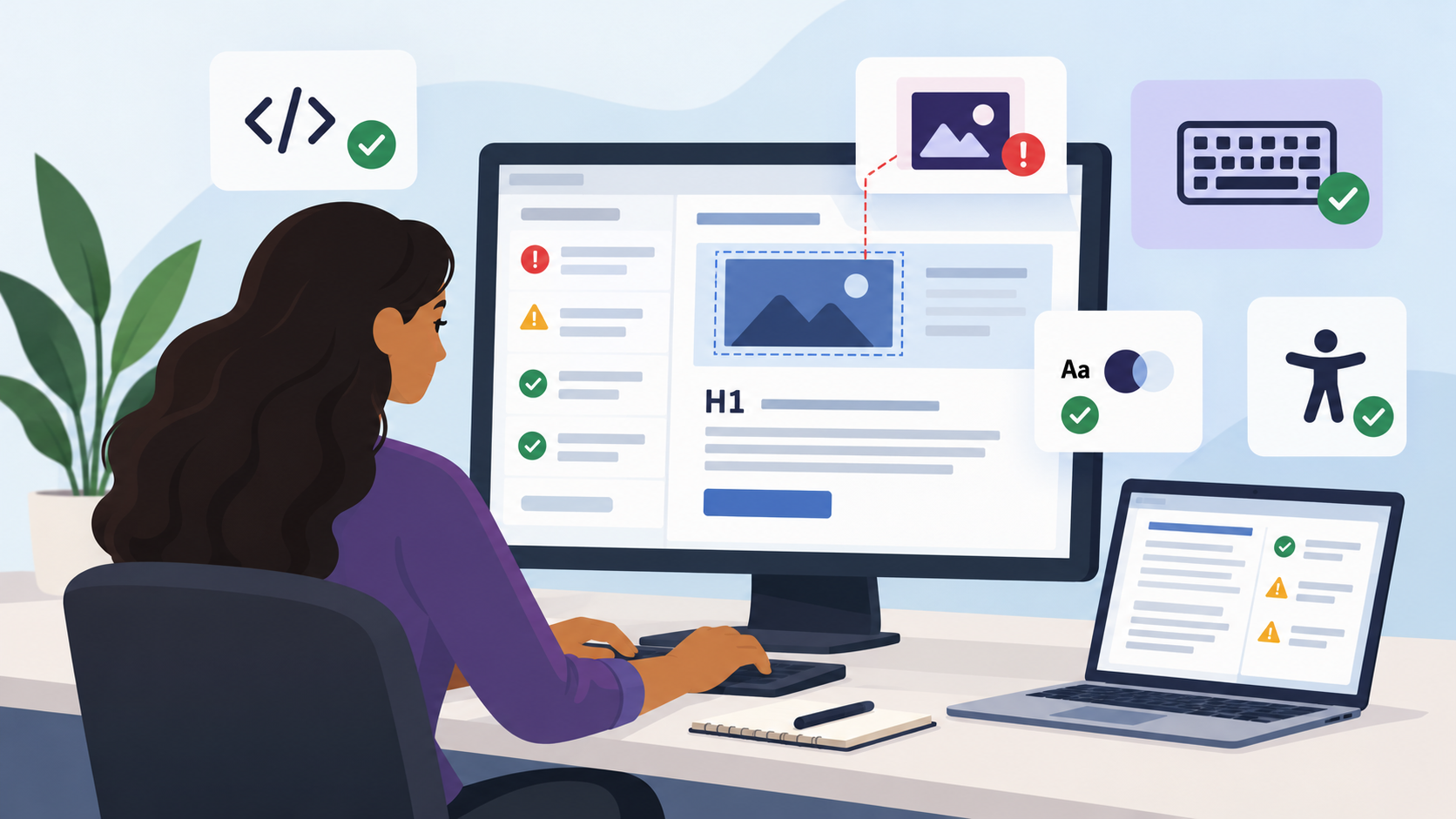
Free and developer-focused accessibility testing tools
These tools are practical starting points for individual pages, components, and development workflows. Several have free core functionality alongside paid options.
1. WAVE — Web Accessibility Evaluation Tool
Provider: WebAIM. Access: Free online evaluator and browser extensions; paid API options. Best for: Content editors, developers, and introductory audits.
WAVE overlays accessibility findings on a page, helping reviewers inspect errors, alerts, structural elements, and contrast concerns in context. The visual presentation is particularly useful when explaining issues to someone who does not routinely inspect HTML.
Remember: Alerts require human interpretation, and a page without reported errors may still have significant barriers.
2. axe DevTools and axe-core
Provider: Deque Systems. Access: Open-source axe-core and free browser testing functionality; advanced commercial options. Best for: Developers, QA teams, and automated test pipelines.
axe-core powers rule-based accessibility checks that can be integrated into developer tooling and automated tests. axe DevTools provides an interactive interface for investigating issues and, depending on edition, additional guided testing capabilities.
Remember: Automated rules only cover checks that can be determined programmatically; include manual testing in the release process.
3. Accessibility Insights
Provider: Microsoft. Access: Free. Best for: Guided browser testing and teams learning structured evaluation.
Accessibility Insights offers fast automated checks and guided assessments that encourage testers to examine behaviors beyond what a scanner can establish. Its workflows help turn isolated findings into a more repeatable testing practice.
Remember: Verify that the specific browser, platform, and testing scenario you need are currently supported.
4. ARC Toolkit
Provider: TPGi. Access: Free browser extension. Best for: Technical auditors and developers inspecting page structure.
ARC Toolkit brings accessibility diagnostics into browser developer tools. It can help reviewers investigate page elements, accessibility properties, and potential standards-related issues during a technical review.
Remember: Findings still need to be validated against the relevant requirement and the actual user experience.
5. Google Lighthouse
Provider: Google. Access: Free and open source. Best for: Developers including accessibility in routine site-quality checks.
Lighthouse audits accessibility alongside other aspects of website quality. It is convenient for quick checks in Chrome DevTools and for repeatable automated workflows.
Remember: Its accessibility score reflects a subset of automated checks, not overall usability or a conformance determination.
6. ANDI — Accessible Name & Description Inspector
Provider: U.S. Social Security Administration. Access: Free bookmarklet. Best for: Accessible-name inspection and Section 508-oriented manual reviews.
ANDI helps testers examine how interface elements expose names, descriptions, and other accessibility information. Its inspection-oriented approach is useful when diagnosing confusing form controls or interactive components.
Remember: Inspection aids do not replace operating the interface with a keyboard or screen reader.
7. Pa11y
Provider: Open-source community. Access: Free and open source. Best for: Command-line testing, scheduled checks, and development automation.
Pa11y provides tools for running automated accessibility checks against webpages. It can be useful for teams that want repeatable testing in scripts or continuous integration rather than relying entirely on browser-based reviews.
Remember: A scripted scan only evaluates the pages and states it actually reaches; interactive journeys may require additional test setup.
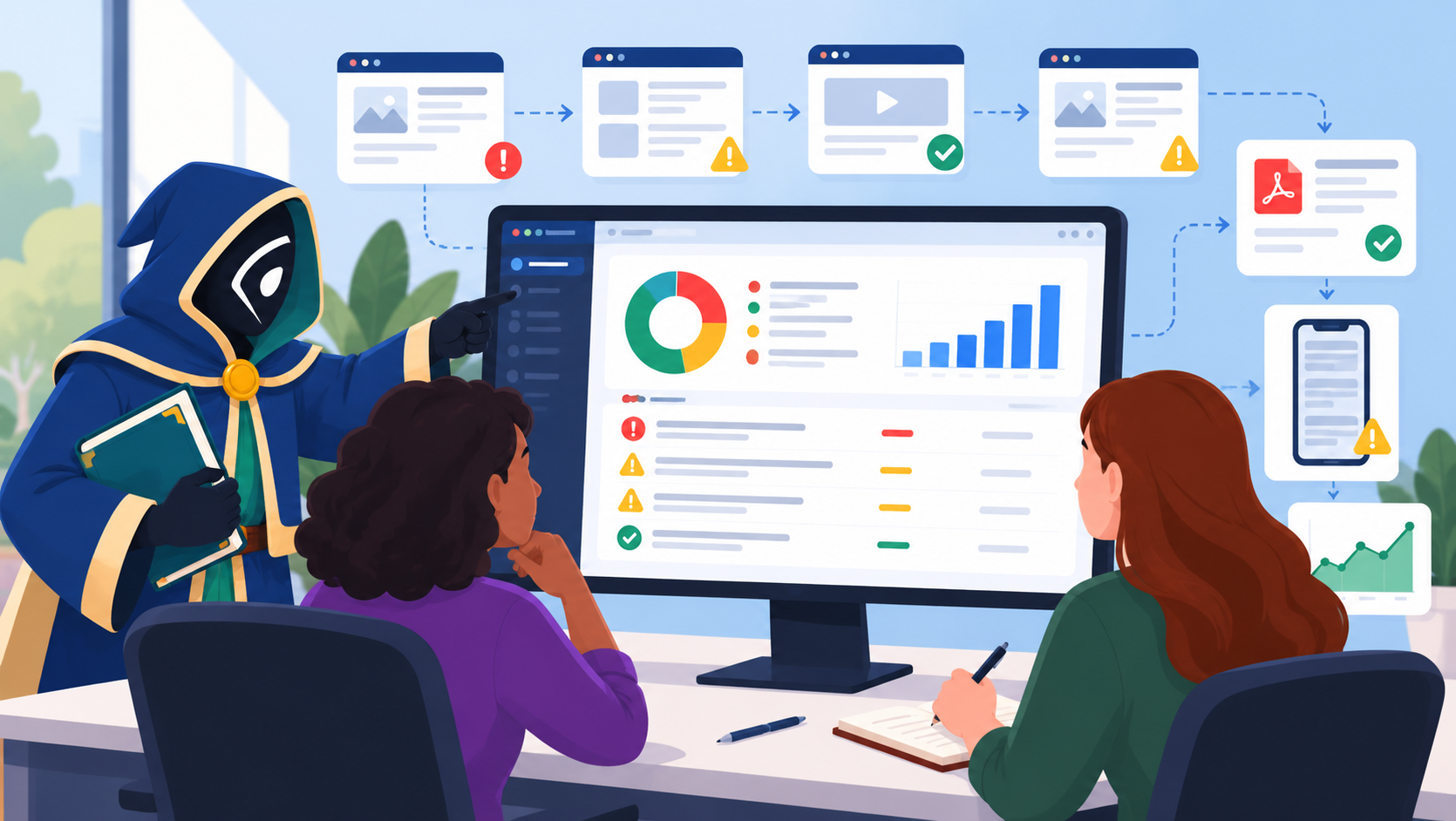
Enterprise accessibility platforms and services
Large organizations often need recurring scans, shared dashboards, issue ownership, historical reporting, and professional support. These products can help manage that work, but purchasing a platform does not automatically make a site accessible.
8. Siteimprove
Access: Commercial platform; separate free tools may be available. Best for: Large sites and distributed content teams.
Siteimprove supports website accessibility monitoring and governance, helping teams identify recurring issues, assign priorities, and track changes across many pages.
9. Silktide
Access: Commercial platform; free tools may be offered separately. Best for: Website-wide monitoring and organizational reporting.
Silktide combines accessibility testing and reporting with broader website quality capabilities. It is useful for organizations that need ongoing oversight rather than occasional one-page scans.
10. Level Access
Access: Commercial platform and professional services. Best for: Organizations building formal accessibility programs.
Level Access combines technology, evaluation, training, and advisory services. It is an option for teams that need help coordinating accessibility across products, departments, and delivery cycles.
11. AudioEye
Access: Commercial solutions and services. Best for: Organizations seeking monitoring and remediation support.
AudioEye offers accessibility monitoring, testing, and remediation-oriented services. When evaluating automated fixes or site overlays, ask exactly what changes are made, how they are verified, and what remains for the site owner to address.
Remember: Accessibility overlays may address some issues or provide user customization features, but they do not remove the need to correct underlying accessibility barriers.
12. DubBot
Access: Commercial platform. Best for: Universities, public-sector sites, and content governance teams.
DubBot provides website scanning and quality assurance capabilities that include accessibility checks. It can help content owners monitor large collections of pages and identify issues that need review.
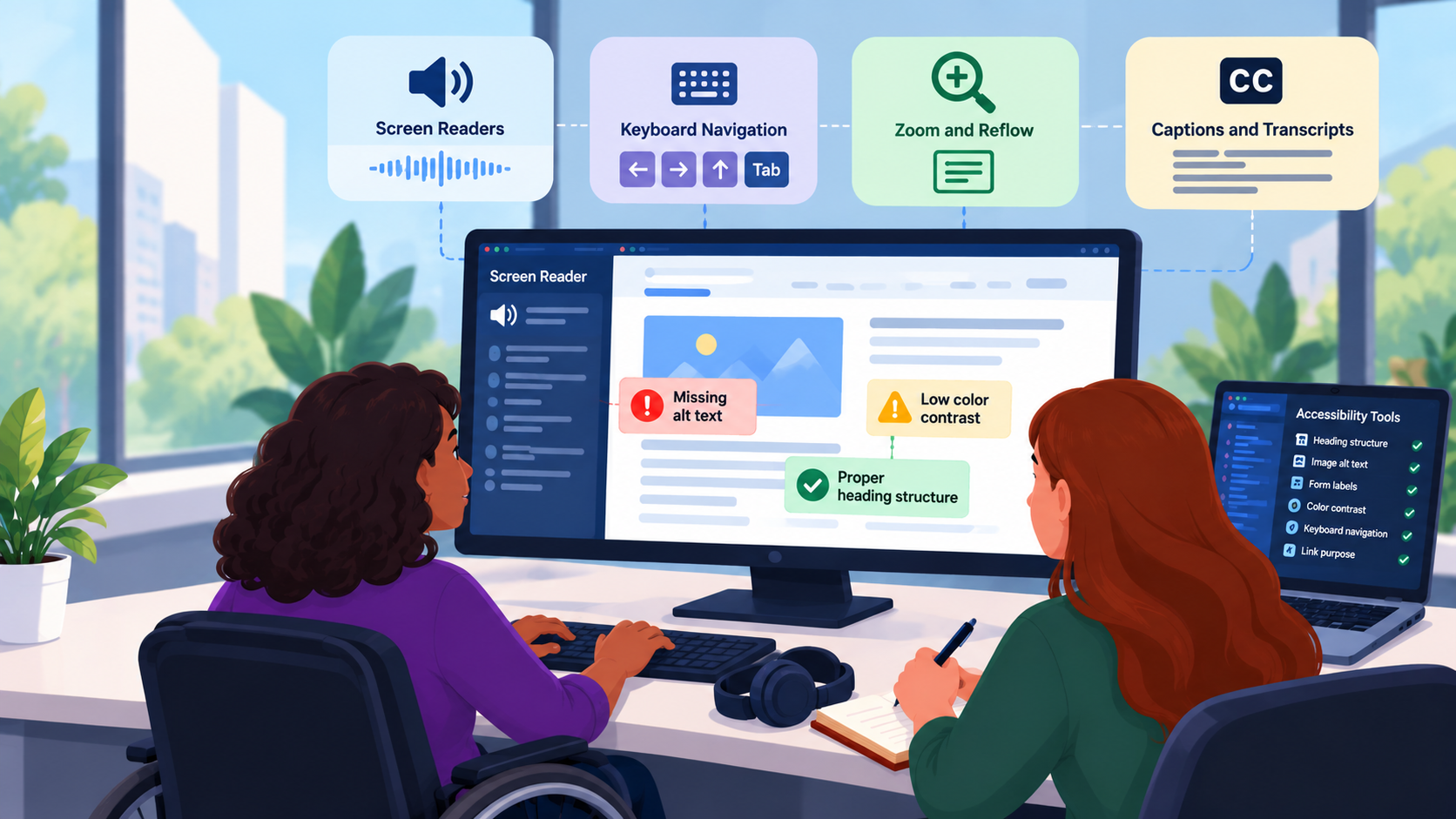
Screen readers and assistive technology testing
Screen readers are not automated WCAG scanners. They let testers experience how information and controls are presented through an assistive technology. Effective testing requires familiarity with the screen reader, supported browser combinations, and expected interaction patterns. Testing with actual users adds perspectives that a developer simulation cannot supply.
13. NVDA — NonVisual Desktop Access
Provider: NV Access. Access: Free and open source. Environment: Windows.
NVDA is a widely used screen reader for evaluating reading order, headings, landmarks, forms, and keyboard interaction. It is an especially approachable starting point for Windows-based accessibility testing.
14. JAWS — Job Access With Speech
Provider: Freedom Scientific / Vispero. Access: Commercial; trial and licensing terms vary. Environment: Windows.
JAWS is an established screen reader used in workplaces and educational settings. Testing with JAWS can reveal behavior that differs from other screen reader and browser combinations.
15. VoiceOver
Provider: Apple. Access: Built into supported Apple devices. Environment: macOS, iPhone, and iPad.
VoiceOver allows testing of spoken output, navigation, gestures, and accessible control semantics within Apple's ecosystem. Desktop and touch-screen experiences should be evaluated separately.
16. TalkBack
Provider: Google. Access: Free on supported Android devices. Environment: Android.
TalkBack is Android's screen reader and an important part of mobile accessibility testing. Use it to inspect spoken labels, swipe navigation, focus behavior, and touch interaction on real devices where practical.
Specialized testing for documents, contrast, and mobile apps
Some accessibility barriers are best evaluated with purpose-built tools. These resources complement, rather than replace, the broader methods above.
17. PAC — PDF Accessibility Checker
Access: Free desktop checker; review current download and licensing details. Best for: Technical PDF accessibility inspection.
PAC helps inspect aspects of PDF accessibility and PDF/UA-related requirements, including tagged document structure and standards-related checks. A passing technical check does not guarantee that reading order, alternative text, or document meaning is correct.
18. Colour Contrast Analyser
Provider: TPGi. Access: Free desktop tool. Best for: Checking foreground/background color combinations.
Colour Contrast Analyser lets testers sample colors and evaluate contrast ratios against relevant WCAG thresholds. It is helpful when auditing designs, text, and interface states.
Remember: Contrast compliance alone does not establish that a visual design is understandable or usable.
19. Android Accessibility Scanner
Provider: Google. Access: Free. Best for: Preliminary checks of Android app interfaces.
Accessibility Scanner suggests improvements for some common mobile interface issues, such as touch-target sizing and labeling. It is useful as an initial review, not a complete mobile accessibility audit.
20. Xcode Accessibility Inspector
Provider: Apple. Access: Included with Apple's development tooling. Best for: Inspecting accessibility properties in Apple-platform apps.
Accessibility Inspector helps developers examine interface accessibility information and identify potential problems while building and testing applications for Apple platforms.
Compare tools by testing need
This comparison emphasizes purpose rather than assigning an overall score. “Free core” means a useful no-cost tool or feature exists; paid tiers and organizational licensing may differ.
| Tool | Primary use | Access model | Testing role |
|---|---|---|---|
| WAVE | Visual webpage review | Free core | Automated findings plus inspection |
| axe DevTools / axe-core | Developer checks and automation | Free core / paid options | Automated plus guided review |
| Accessibility Insights | Guided web assessments | Free | Automated and manual |
| ARC Toolkit | Technical page inspection | Free | Automated and manual |
| Lighthouse | Routine browser audits | Free | Automated |
| ANDI | Names and descriptions | Free | Manual inspection support |
| Pa11y | Scripted web checks | Free | Automated |
| Siteimprove | Website governance | Commercial | Monitoring and management |
| Silktide | Site-wide quality monitoring | Commercial | Monitoring and management |
| Level Access | Accessibility programs | Commercial | Platform and services |
| AudioEye | Monitoring and remediation support | Commercial | Platform and services |
| DubBot | Content and site QA | Commercial | Monitoring and management |
| NVDA | Windows screen reader | Free | Assistive technology testing |
| JAWS | Windows screen reader | Commercial | Assistive technology testing |
| VoiceOver | Apple screen reader | Built in | Assistive technology testing |
| TalkBack | Android screen reader | Free / built in | Assistive technology testing |
| PAC | PDF inspection | Free | Document testing |
| Colour Contrast Analyser | Color contrast checks | Free | Specialized manual support |
| Android Accessibility Scanner | Android app checks | Free | Automated suggestions |
| Xcode Accessibility Inspector | Apple app inspection | Development tooling | Specialized inspection |
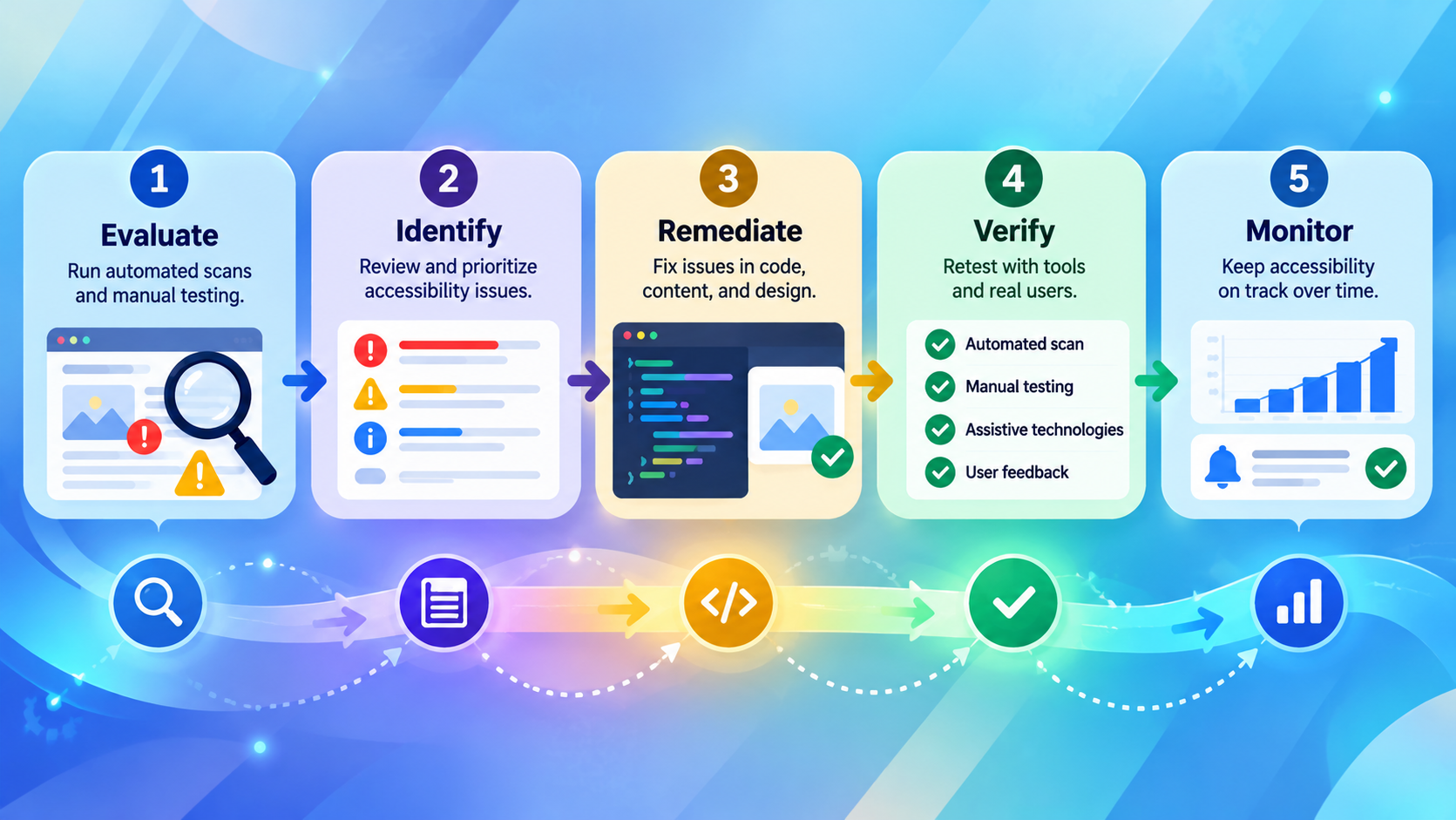
A practical accessibility testing workflow
You do not need twenty tools for every project. Start with a repeatable process and select tools that support each step.
- Define scope and standards. Identify the pages, components, user journeys, devices, and applicable WCAG or legal requirements. Record the version and conformance level being evaluated.
- Run automated checks. Use WAVE, axe, Lighthouse, or a similar tool to find programmatically detectable issues. Include authenticated and interactive states when possible.
- Inspect semantics and content. Check headings, landmarks, accessible names, descriptions, form instructions, errors, alternative text, and relationships between controls.
- Test with a keyboard. Complete core tasks without a mouse. Check focus visibility, focus order, dialogs, menus, skip links, and keyboard traps.
- Test with assistive technology. Choose relevant screen reader and browser combinations, and evaluate real workflows—not just isolated controls.
- Check specialized content. Review PDFs, mobile apps, contrast, zoom and reflow, captions, and other media using appropriate tools and techniques.
- Document, fix, and retest. Record the issue, location, reproduction steps, user impact, relevant success criterion, recommended fix, and retest outcome.
- Include disabled users. Where feasible, conduct usability testing with people who use the product and relevant assistive technologies in everyday life.
For development teams: Put fast automated checks into pull requests or CI, then schedule manual and assistive-technology testing for complex components and critical journeys. Automation helps prevent regressions; it does not replace human evaluation.
How to choose the right tools
For a solo developer or small team
Start with a free scanner, a browser inspector, keyboard testing, and at least one relevant screen reader. Add automated checks to your development workflow when practical.
For a content-heavy website
Prioritize tools that make it easy to find heading, link, image, and document problems. If many editors publish content, ongoing scans and clear ownership may be more valuable than another one-off audit.
For a university, agency, or large organization
Evaluate monitoring coverage, role-based access, issue assignment, integrations, reporting, support, and professional evaluation services. Ask vendors how they handle dynamic pages, authentication, false positives, and manual findings.
For native mobile applications
Use platform-specific inspection tools alongside VoiceOver or TalkBack, real-device interaction, and mobile-focused accessibility criteria. A desktop webpage scanner is not sufficient for a native app.
Questions to ask before buying
- Which standards and versions does the product assess, and which checks are automated?
- Can it test logged-in pages, dynamic interfaces, and complete user journeys?
- Can testers verify findings, suppress false positives, and track remediation?
- What is included in the license, and what requires additional services?
- Is the testing platform itself accessible to the people who will use it?
- Does the vendor make claims about “automatic compliance” that exceed what its evidence supports?
Why a passing scan does not mean a website is accessible
A passing automated scan is not a WCAG conformance certificate. Automated tools can find real issues, but they cannot reliably evaluate every success criterion or the quality of a person's experience.
For example, a scanner may confirm that an image has an alt attribute without knowing whether the text communicates the image's purpose. It may recognize a button's accessible name without knowing whether the button opens the expected interface, announces changes appropriately, or is usable throughout a multistep process.
Similarly, an accessibility overlay or remediation widget does not remove the need to fix underlying barriers. The strongest programs combine accessible design and development, repeatable testing, meaningful remediation, and direct feedback from people with disabilities.
See W3C guidance on evaluating conformance for a more rigorous discussion of scope and evidence.
Frequently asked questions
What is the best free accessibility testing tool?
There is no universal winner. WAVE is approachable for visual review; axe-core is useful for development automation; Accessibility Insights supports guided assessment; and Lighthouse is convenient for routine browser checks. Pair whichever you choose with manual testing.
Can automated testing prove WCAG compliance?
No. Automated checks assess only part of what is needed. Conformance evaluation requires an appropriate scope, relevant success criteria, and human judgment.
Do I need to test with a screen reader?
For a thorough evaluation of websites or applications intended to work with screen readers, yes. Screen reader testing helps reveal problems with navigation, announcements, labels, and interaction that automated checks may miss. It should be performed by people who understand the technology.
Should I test with both NVDA and JAWS?
Not every project needs every combination. Select assistive technologies and browsers based on your audience, supported platforms, risk, and resources. More than one combination can be valuable for complex or widely used services.
Is a PDF accessibility checker enough?
No. Automated PDF checks can reveal technical issues, but a person still needs to evaluate reading order, meaning, alternative text, tables, and usability.
How often should a website be tested?
Test during design and development, before major releases, after significant changes, and periodically on important user journeys. Automated monitoring can catch some regressions between deeper evaluations.
Can an accessibility overlay make my website compliant?
Do not rely on an overlay as proof of conformance. Accessibility depends on the underlying experience and on whether applicable requirements are actually met. Independently verify any claimed remediation.
Official resources and further reading
- W3C WAI — evaluating web accessibility
- W3C WAI — web accessibility evaluation tools list
- W3C WAI — Web Content Accessibility Guidelines overview
- W3C WAI — conformance evaluation
- WAI-ARIA Authoring Practices Guide — interaction patterns and examples
- Section508.gov — accessibility testing guidance
- WebAIM — accessibility techniques
Final thoughts
Accessibility testing works best when tools support a broader practice. Start with the tools that fit your role and platform, learn what their results actually mean, and build in manual checks, assistive technology, and user feedback. A useful report identifies barriers; a useful accessibility program fixes them and keeps them from returning.
Editorial note: This guide is informational and does not endorse a particular provider or guarantee the completeness of any tool's testing. Product names and trademarks belong to their respective owners. Pricing and feature availability should be confirmed with the provider.