


Published: | Category: Tutorial
More Than Just Copy and Paste
Embedding a video, map, form, audio player, or third-party application into a web page is often as easy as copying a snippet of code and pasting it into your site.
That convenience can also hide problems.
The embed code supplied by a provider is designed primarily to make its content work across a wide range of websites. It may not account for the accessibility requirements, responsive behavior, content structure, or user experience of your page.
Two problems appear especially often: iframe titles that technically exist but do not meaningfully identify the embedded content, and fixed-width embeds that overflow or break layouts on smaller screens.
Those are the best places to start. But they are not the end of the iframe accessibility story.
The two iframe problems you are most likely to encounter
If you regularly paste embed code from video platforms, mapping services, form providers, audio services, social networks, or other third-party tools, check two things before publishing:
- Does the iframe have a meaningful title?
- Does the iframe remain usable when the available screen width becomes smaller?
These checks take very little time, but they can make an enormous difference.
1. Give every meaningful iframe a useful title
An iframe creates a document within a document. For someone navigating visually, the surrounding page often makes the purpose of that embedded content obvious. A video thumbnail looks like a video. A map looks like a map.
That visual context cannot be assumed for someone navigating with assistive technology.
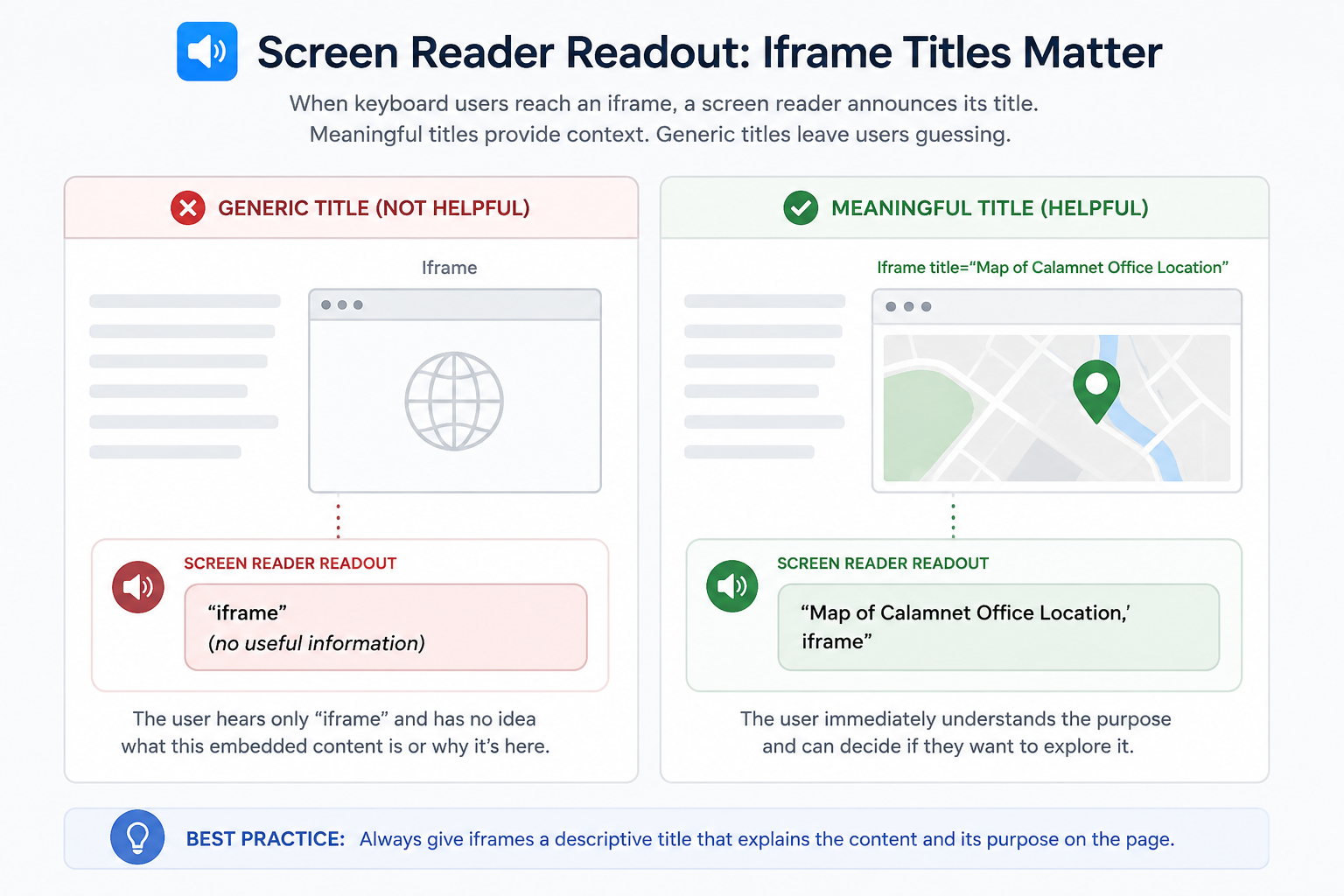
The title attribute on an iframe provides an accessible label for the frame. Its purpose is to help users identify what the frame contains so they can decide whether they want to enter and explore it.
Most iframes that present content or functionality to users should have a meaningful title. The goal is to help users identify the purpose of the embedded content before entering it.
Do not stop at simply having a title
One of the most common mistakes is treating the presence of a title attribute as the finish line.
Third-party embed code may arrive with a title similar to:
<iframe
  src="..."
  title="Video player">
</iframe>
That is better than an unlabeled frame, but it may provide surprisingly little information.
Imagine a page containing five embedded videos. If each iframe is announced simply as “Video player,” a screen reader user can identify that the frames contain videos, but cannot identify which video is which without investigating each one.
Compare that with:
<iframe
  src="..."
  title="Video: How to complete the FAFSA">
</iframe>
Now the frame has a purpose in the context of the page.
Presence is not the same as quality
This distinction matters when automated accessibility testing is involved.
Automated tools are very good at detecting certain objective conditions. A tool can easily determine whether an iframe contains a title attribute. Determining whether that title is actually useful to a human being is considerably harder.
A generic title may therefore satisfy a simple automated presence check while still creating a poor experience for someone using assistive technology.
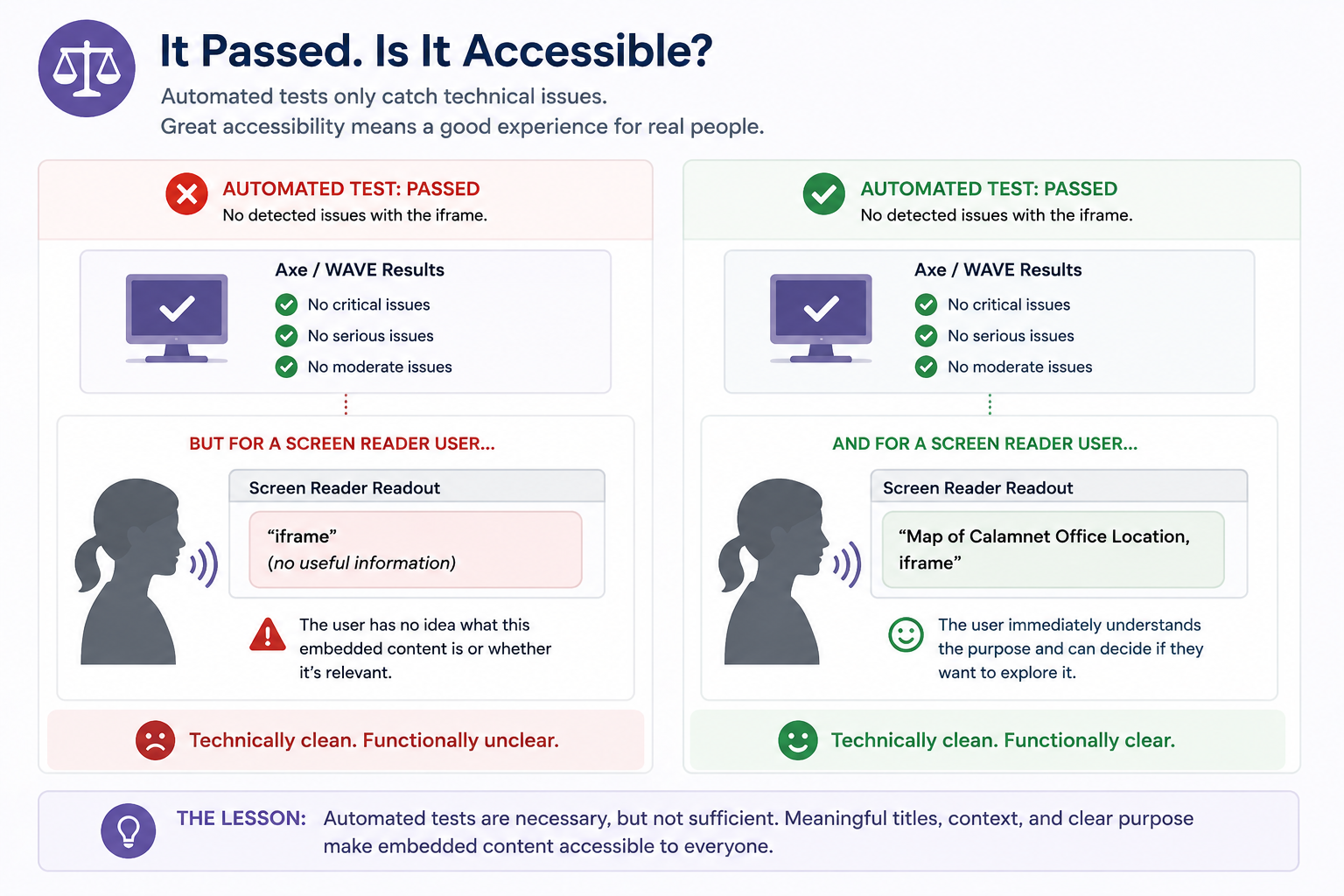
This is an important accessibility principle far beyond iframes:
Passing an automated test is not the same as being accessible.
Automated testing should be part of accessibility testing, not a replacement for human judgment.
Whenever possible, test iframe announcements with an actual screen reader. Hearing how frame titles are presented in context often reveals issues that automated tools cannot detect.
What should an iframe title say?
Describe the content or purpose of the frame as concisely as possible.
Useful titles might include:
title="Campus location map"title="Video: Applying for financial aid"title="Tuition payment portal"title="Course registration form"title="Podcast: Interview with the university president"
Less useful titles include:
title="iframe"title="Embedded content"title="Widget"title="Video player"title="External content"
The question to ask is simple:
If someone heard only this title, would they understand what they would find inside the frame?
If the answer is no, improve the title.
You usually do not need to say “iframe”
Avoid titles such as:
title="Iframe containing the campus map"Assistive technology can already expose the element as a frame. Repeating the element type adds unnecessary verbosity.
Prefer:
title="Interactive campus map"Make similar embeds distinguishable
Multiple frames on the same page deserve particular attention.
Instead of:
<iframe title="Video player" src="..."></iframe>
<iframe title="Video player" src="..."></iframe>
<iframe title="Video player" src="..."></iframe>
Use titles that distinguish their purposes:
<iframe
  title="Video: Undergraduate admissions overview"
  src="...">
</iframe>

<iframe
  title="Video: Financial aid overview"
  src="...">
</iframe>

<iframe
  title="Video: Student housing tour"
  src="...">
</iframe>
The result is not merely technically labeled content. It is navigable content.
2. Make iframe embeds responsive
The other problem appears immediately when a perfectly functional desktop embed meets a narrow screen.
Providers frequently supply embed code with explicit dimensions:
<iframe
  width="560"
  height="315"
  src="..."
  title="Video: Campus tour">
</iframe>
A 560-pixel-wide iframe may fit comfortably inside a desktop content area. Put the same iframe inside a much narrower viewport and you may have horizontal overflow, clipped content, an awkwardly scaled layout, or controls that become difficult to reach.
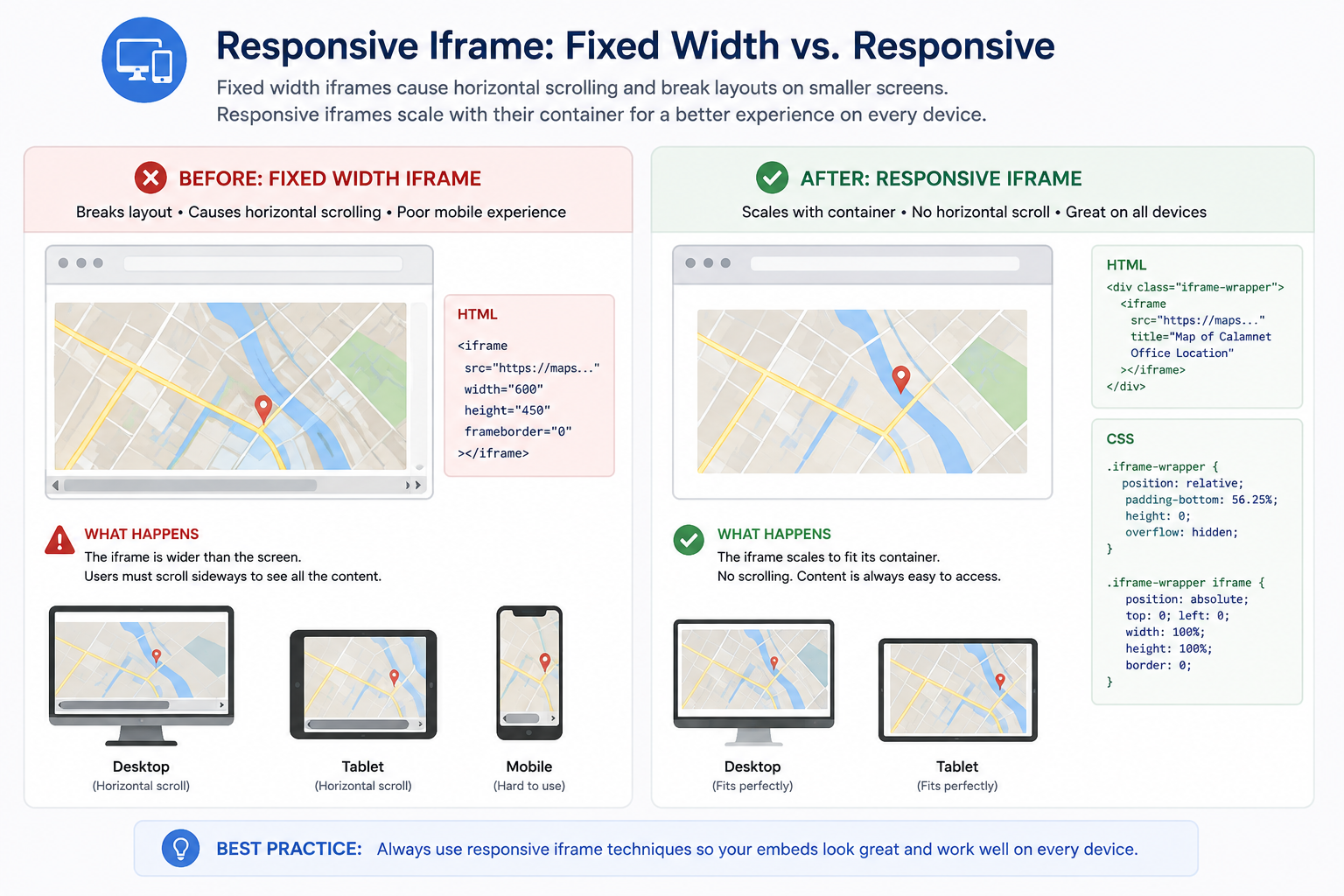
Responsive design is therefore not just visual polish. When layout problems cause content or functionality to become unavailable at narrow viewport widths or high zoom levels, accessibility is involved as well.
A modern responsive video pattern
Modern CSS makes maintaining a video's aspect ratio considerably easier than older padding-based techniques.
<div class="embed-container">
  <iframe
    src="..."
    title="Video: Campus tour"
    allowfullscreen>
  </iframe>
</div>
.embed-container {
width: 100%;
aspect-ratio: 16 / 9;
}
.embed-container iframe {
display: block;
width: 100%;
height: 100%;
border: 0;
}The container can shrink with the available space while preserving the intended aspect ratio.
Not every iframe should use 16:9
This is important.
A 16:9 container is appropriate for conventional widescreen video. It is not a universal iframe rule.
Maps, forms, dashboards, calendars, document viewers, payment interfaces, audio players, and interactive applications may require very different dimensions.
For those interfaces, responsive behavior may be closer to:
.embed-container iframe {
  display: block;
  width: 100%;
  max-width: 100%;
  border: 0;
}
The correct approach depends on what is inside the frame. Test the actual content rather than blindly applying a video pattern to every iframe.
Test more than a phone
Responsive testing should include narrow browser windows and substantial browser zoom, not just a handful of popular device presets.
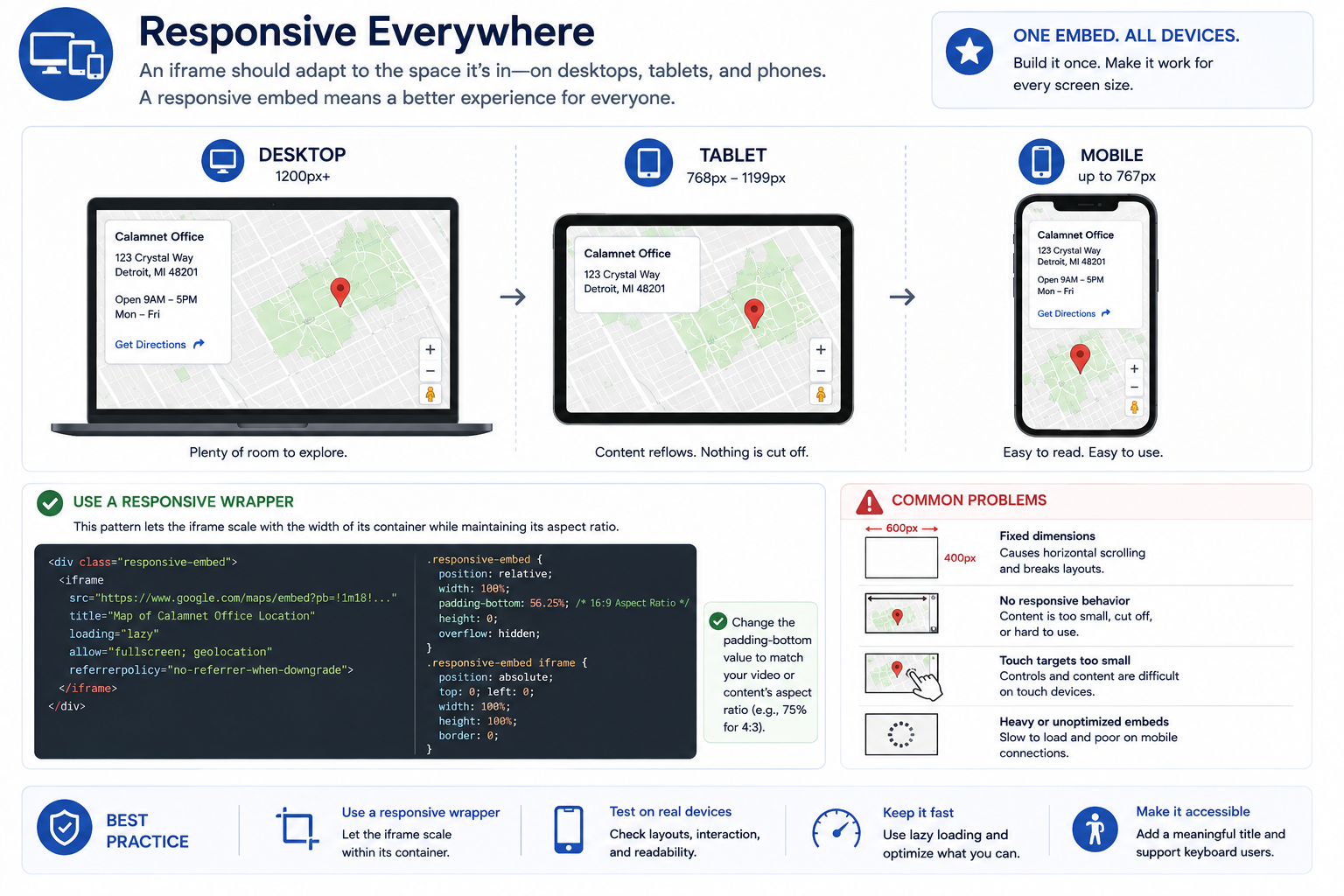
WCAG's reflow requirements are especially relevant here. At narrow equivalent viewport widths, users should not lose information or functionality or be forced into unnecessary two-dimensional scrolling, except where a two-dimensional layout is essential to understanding or using the content.
Some embedded interfaces legitimately require two-dimensional interaction. Examples may include maps, large data visualizations, spreadsheets, and similar tools where both horizontal and vertical movement are necessary to understand or use the content. The goal is to avoid unnecessary scrolling, not to eliminate it where it is essential to the experience.
When testing an embed, ask:
- Does it overflow its container?
- Are controls clipped?
- Does text inside the embed become unreadable?
- Can all functionality still be reached?
- Does the parent page develop unnecessary horizontal scrolling?
- What happens when the browser is heavily zoomed?
Treat third-party embed code as a starting point
Copy-and-paste embed code creates an interesting ownership problem.
You did not build the player, map, form, or application. You may have very little control over the document inside the iframe. But you did choose to include it on your page.
That means the provider's snippet should be treated as a starting point rather than a guarantee of accessibility.
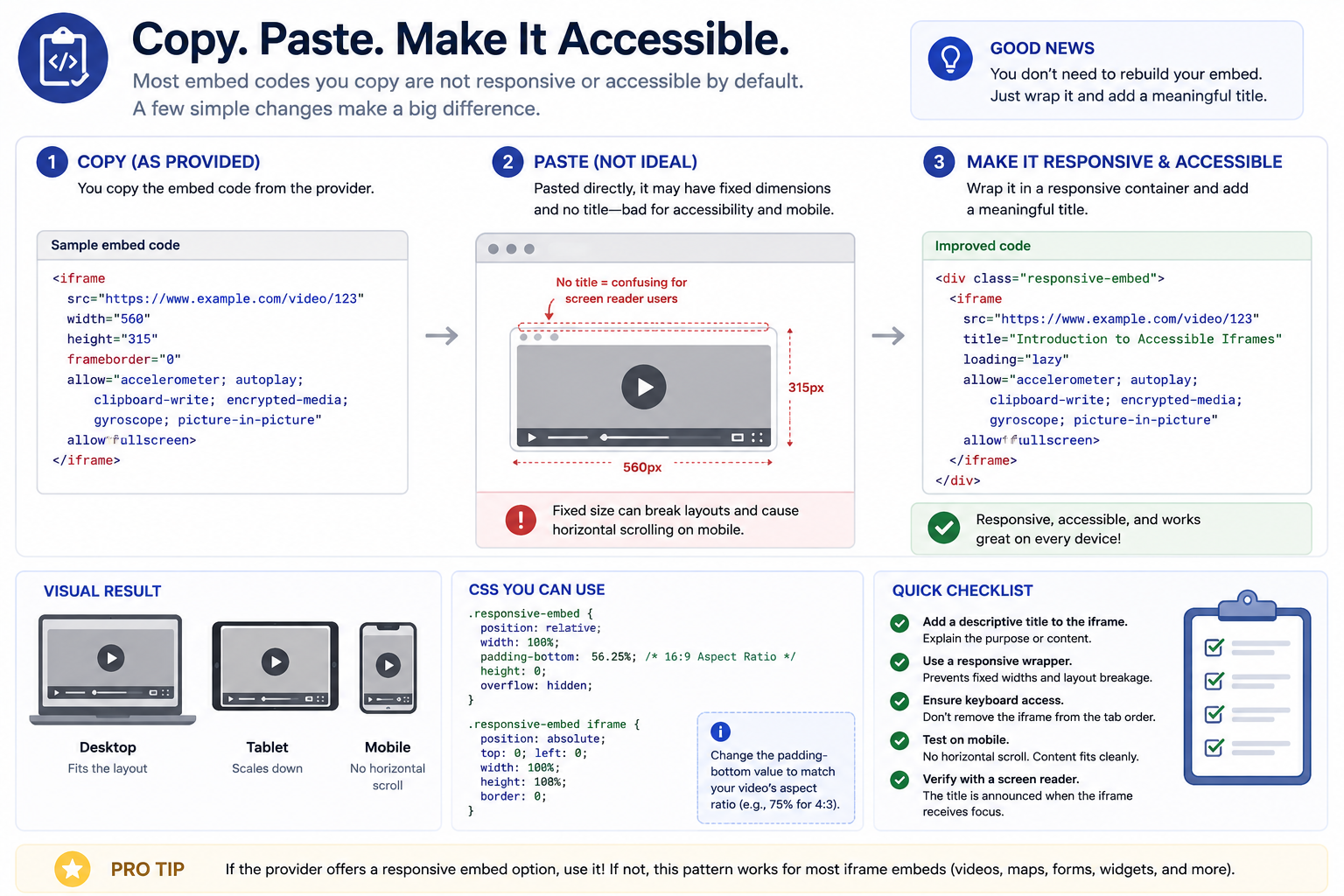
Before publishing third-party embed code, review the markup you have been given. At minimum, check the iframe's accessible name, dimensions, responsive behavior, keyboard behavior, and the accessibility of the service being embedded.
A provider gives you code intended to make an embed work. That does not necessarily mean the code is the most accessible or resilient implementation for your particular site.
Keyboard access inside an iframe
An iframe may contain its own complete interactive interface. Video controls, maps, forms, document viewers, payment systems, and third-party applications can contain many focusable elements.
Test the embed without using a mouse.
Start before the iframe and use the keyboard to move through the page. Enter the embedded content, interact with its controls, and then continue past it.
Pay particular attention to whether:
- the iframe can be reached using the keyboard;
- interactive controls inside it can be reached;
- focus moves in a logical order;
- focus remains visible;
- controls can actually be operated from the keyboard; and
- the user can leave the embedded interface and continue through the parent page.
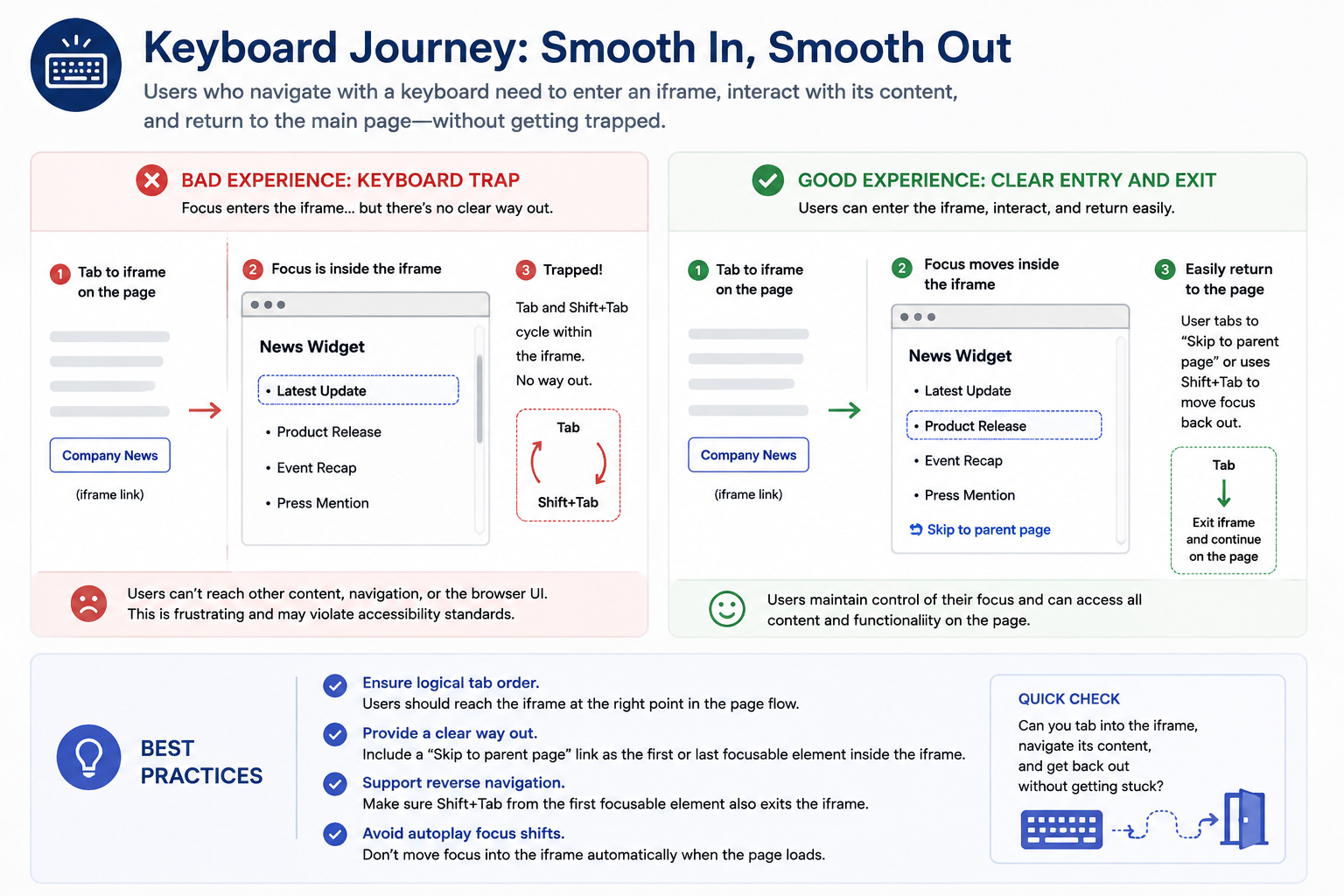
Watch for keyboard traps
One of the more serious iframe problems occurs when keyboard focus enters an embedded interface but cannot leave it through normal keyboard navigation.
This is known as a keyboard trap.
If users can enter an iframe using the keyboard, they must also have a reasonable way to move away from it.
Test both forward and reverse keyboard navigation. A user should be able to move into the embedded content, interact with it, and continue navigating through the rest of the page without becoming disoriented or trapped.
Unfortunately, when a third-party service causes the problem, the page author may not be able to repair the interface directly. That makes testing third-party services before adopting them especially important.
Check focus order and focus visibility
Even when an iframe does not create a complete keyboard trap, it can still make keyboard navigation confusing.
Focus should move through the surrounding page and embedded content in an order that makes sense.
Users should also be able to tell where keyboard focus currently is.
An embedded application with invisible or barely visible focus indicators may be technically operable while still being extremely difficult to use.
Test the transition into the frame, navigation within it, and the transition back to the parent document.
Provide useful context around embedded content
An iframe should not have to explain everything by itself.
The surrounding page should help users understand why the embedded content is there.
For example:
<section>
  <h2>Take a virtual campus tour</h2>

  <p>
    Explore residence halls, classrooms, and student spaces
    in this 6-minute campus tour.
  </p>

  <div class="embed-container">
    <iframe
      src="..."
      title="Video: Virtual campus tour">
    </iframe>
  </div>
</section>
The heading, description, and iframe title work together. A user knows what the content is, why it is relevant, and what to expect before interacting with it.
Be careful when essential information exists only inside an iframe
Third-party content can fail.
A service can become unavailable. A browser extension can block it. Privacy settings can prevent it from loading. JavaScript can fail. Network restrictions can interfere with it. The provider can change its product.
If the iframe contains information that is essential to completing a task, consider what happens when the embed is unavailable or inaccessible.
Depending on the content, it may be appropriate to provide supporting information outside the iframe, such as:
- a text description;
- important contact information;
- an address displayed as text in addition to a map;
- instructions for completing the task another way;
- a transcript or equivalent resource where appropriate; or
- a direct way to access the underlying service.
This does not mean every iframe needs a duplicate copy of everything it contains. The goal is resilience: important information and essential tasks should not become unnecessarily dependent on one fragile embedded interface.
Avoid unexpected autoplay and motion
Embedded media can introduce another category of problems: content that starts moving or producing sound without the user's request.
Avoid configuring third-party embeds to autoplay whenever possible, particularly when audio is involved.
Unexpected audio can interfere with screen reader output, while unexpected movement can be distracting or problematic for some users.
If moving, blinking, scrolling, or automatically updating content is present, make sure the applicable WCAG requirements for pausing, stopping, hiding, or controlling that content are considered.
Remember that an accessible iframe does not make inaccessible media accessible
Giving a video iframe an excellent title only solves the iframe-labeling problem.
The video itself may still require captions, audio description, an accessible player, usable keyboard controls, and other accommodations depending on the content.
Likewise, an embedded audio player may require a transcript or other equivalent content.
Think of the iframe and the content inside it as separate accessibility layers.
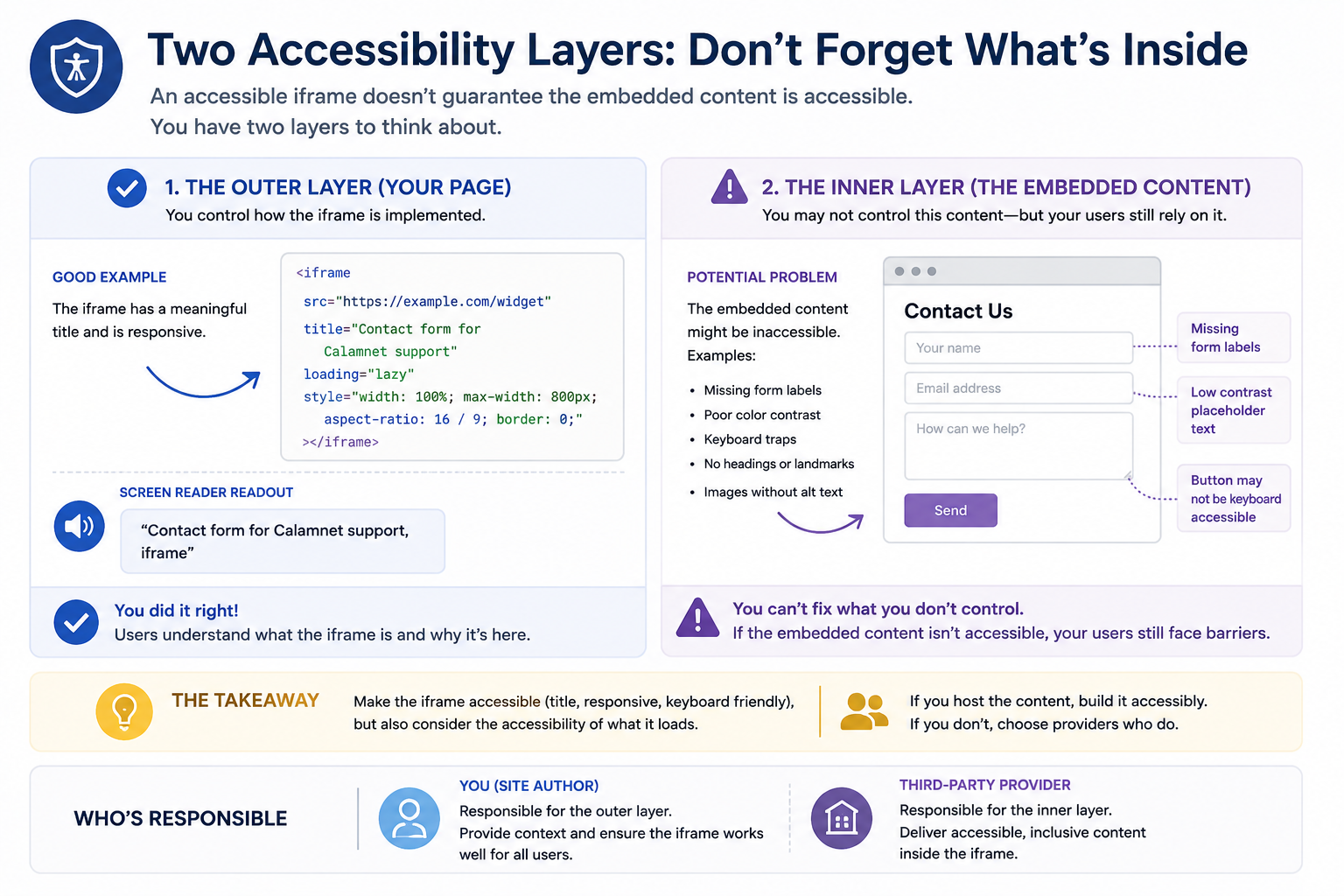
The iframe needs to be integrated accessibly into your page. The resource inside the iframe also needs to be accessible.
Understand what you can and cannot fix
Third-party iframes frequently load content from another domain. Because of browser security boundaries, you generally cannot reach into that cross-origin document with your site's CSS or JavaScript and repair its accessibility problems.
You may be able to improve the iframe element itself and the way it is presented on your page, but problems inside the third-party application often have to be fixed by the provider.
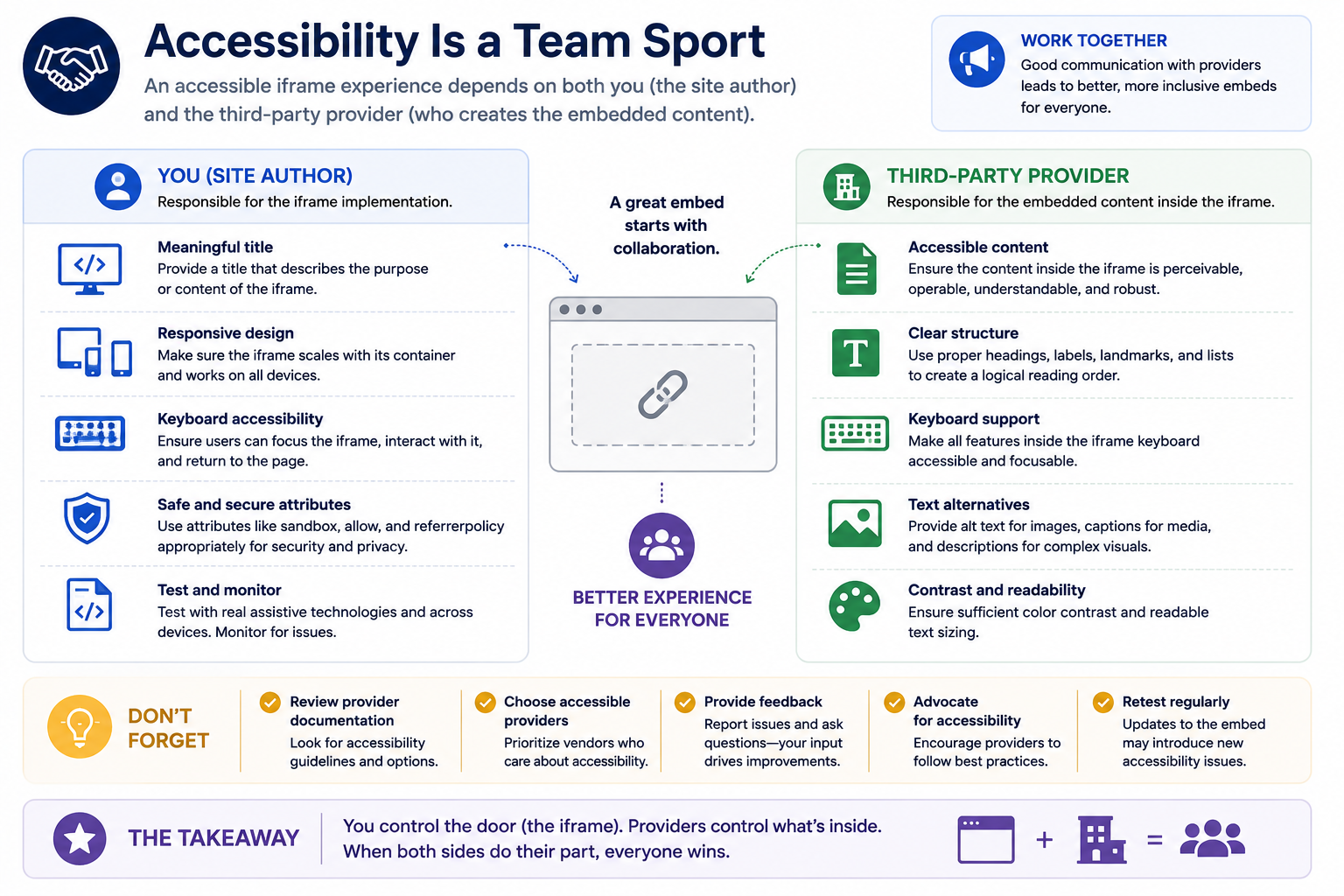
This is why accessibility should be considered when selecting third-party services, not only after they have already been integrated.
If two products perform the same function and one provides substantially better keyboard access, labeling, responsive behavior, and assistive technology support, accessibility should be part of the decision.
Consider performance, too
Third-party embeds can be expensive. A single iframe may load scripts, fonts, trackers, media, stylesheets, and other resources.
When appropriate, native lazy loading can prevent an off-screen iframe from loading until the user approaches it:
<iframe
  src="..."
  title="Interactive campus map"
  loading="lazy">
</iframe>
Performance and accessibility frequently overlap. A page that becomes sluggish under limited bandwidth or on less powerful hardware can create very real usability barriers.
Lazy loading should still be applied thoughtfully. Content that users need immediately should not be unnecessarily delayed.
In particular, test important content that appears near the top of the page. If users are expected to interact with an embedded video, form, map, or other resource immediately after the page loads, lazy loading may not provide a meaningful benefit and could delay access to that content.
Review the permissions you copy from providers
Modern iframe snippets can contain attributes such as allow, allowfullscreen, referrerpolicy, and sandbox.
Do not remove attributes you do not understand simply to make the markup shorter, but do not assume every copied permission is required either.
For example, a provider may request access to features such as autoplay, the clipboard, fullscreen display, or other browser capabilities.
Review provider documentation and grant only the capabilities necessary for the embedded experience to function.
This is primarily a security and privacy concern rather than an iframe-title accessibility issue, but it belongs to the same larger habit: understand third-party code before publishing it.
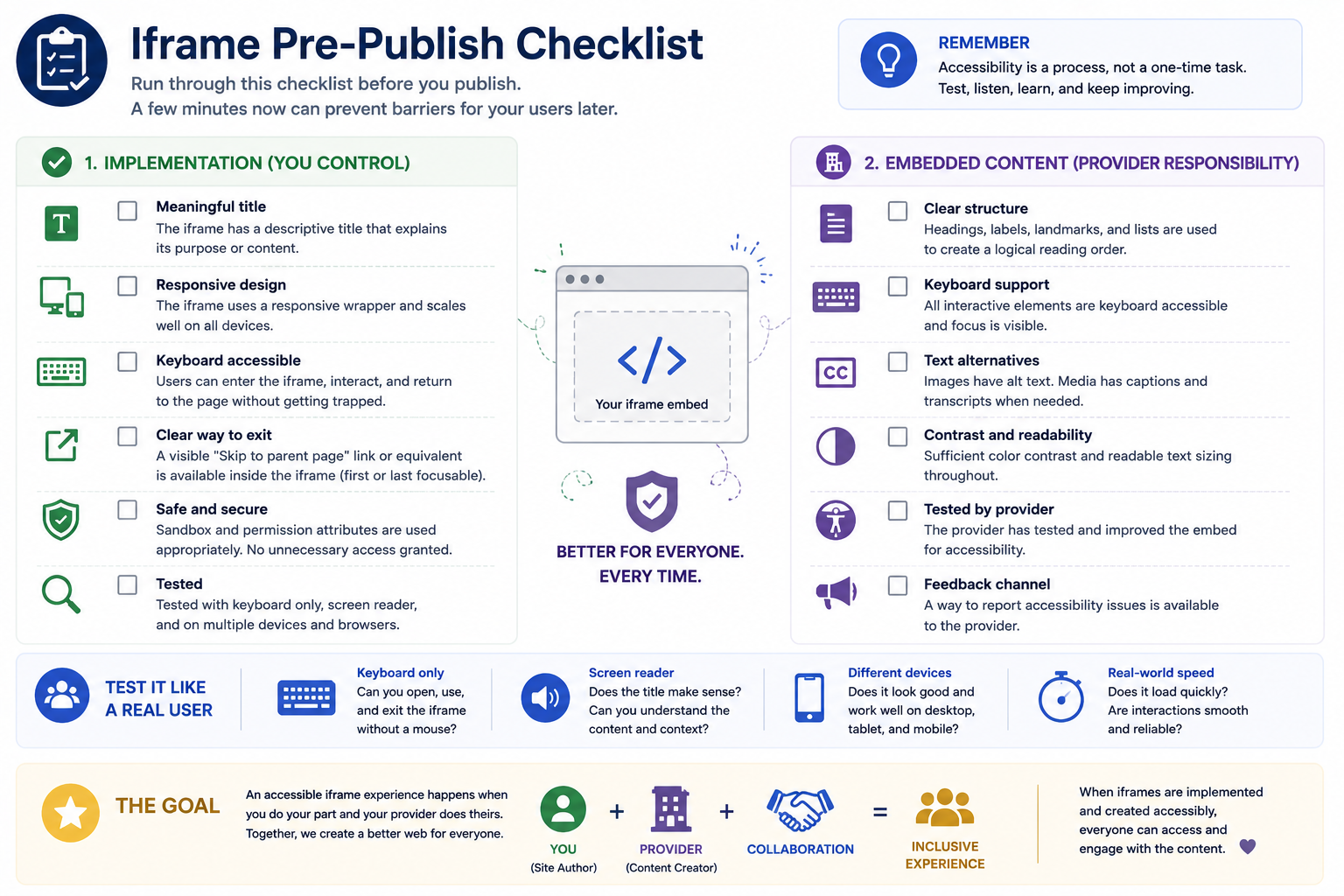
A practical iframe testing routine
You do not need an enormous testing process every time someone embeds a video.
A short manual review catches many of the problems that copy-and-paste workflows introduce.
- Read the iframe title. Does it identify the actual content or purpose of the frame?
- Check for duplicates. If several frames exist, can users distinguish them by their accessible names?
- Resize the browser. Does the embed remain inside its container at narrow widths?
- Zoom the page. Does important information or functionality disappear or become unnecessarily difficult to reach?
- Put the mouse aside. Can you reach, operate, and leave the embedded content using the keyboard?
- Watch the focus indicator. Can you tell where focus is at every step?
- Listen with a screen reader. Does the frame's announcement make sense in the context of the surrounding page?
- Test the content itself. If it is a video, map, form, audio player, or application, is that experience accessible after entering the frame?
- Consider failure. If the embed does not load, can the user still obtain essential information or complete an essential task?
- Run automated testing. Use automated tools to catch machine-detectable problems, but treat the results as one part of the review rather than the final verdict.
Putting it together
A more thoughtful video embed might look like this:
<section aria-labelledby="campus-tour-heading">
  <h2 id="campus-tour-heading">Virtual campus tour</h2>

  <p>
    Explore classrooms, residence halls, and student spaces
    in this six-minute introduction to campus.
  </p>

  <div class="embed-container">
    <iframe
      src="https://example.com/embed/video"
      title="Video: Virtual campus tour"
      loading="lazy"
      allowfullscreen>
    </iframe>
  </div>
</section>
.embed-container {
width: 100%;
aspect-ratio: 16 / 9;
}
.embed-container iframe {
display: block;
width: 100%;
height: 100%;
border: 0;
}There is nothing particularly complicated about this example.
That is precisely the point.
Many iframe problems are not caused by difficult technical limitations. They happen because an embed was copied, pasted, and never reviewed.
Related Calamnet tools:
- Responsive Video Embed
The Responsive Video Embed tool converts video links from platforms like YouTube, Vimeo, and other providers into responsive, accessibility-friendly embed code. Instead of manually building iframe wrappers or dealing with inconsistent embed snippets, you can paste a video URL and instantly generate clean markup that adapts to different screen sizes and layouts.
- Responsive Audio Embed
The Responsive Audio Embed tool turns audio links and embed information into responsive, accessibility-friendly player code. Whether you are sharing a podcast episode, music track, interview, narration, or other recording, the tool helps you create a player that fits naturally into different pages and layouts.
Final Takeaways
Iframes are not inherently inaccessible, and using them does not automatically create an accessibility problem.
The problem is assuming that because an embed works, the work is finished.
Start with the two issues you are most likely to encounter: give every meaningful iframe a title that actually identifies its content, and make sure the embed responds gracefully to smaller viewports and browser zoom.
Then go further. Test keyboard navigation. Watch focus behavior. Check the accessibility of the content inside the frame. Avoid unexpected autoplay. Think about what happens if the third-party service fails. And remember that automated accessibility testing cannot determine every aspect of the human experience.
Most importantly, do not treat code supplied by a third-party provider as finished simply because it can be copied and pasted.
Providers give you code that works. It is still your responsibility to make sure it works well for the people using your site.
That extra review may take only a few minutes. For someone who depends on keyboard navigation, a screen reader, magnification, reflow, captions, or another accessibility feature, those few minutes can determine whether the embedded content is merely present or actually usable.